Save this find
Create a free account and this mod is saved to your favorites.
About This Mod
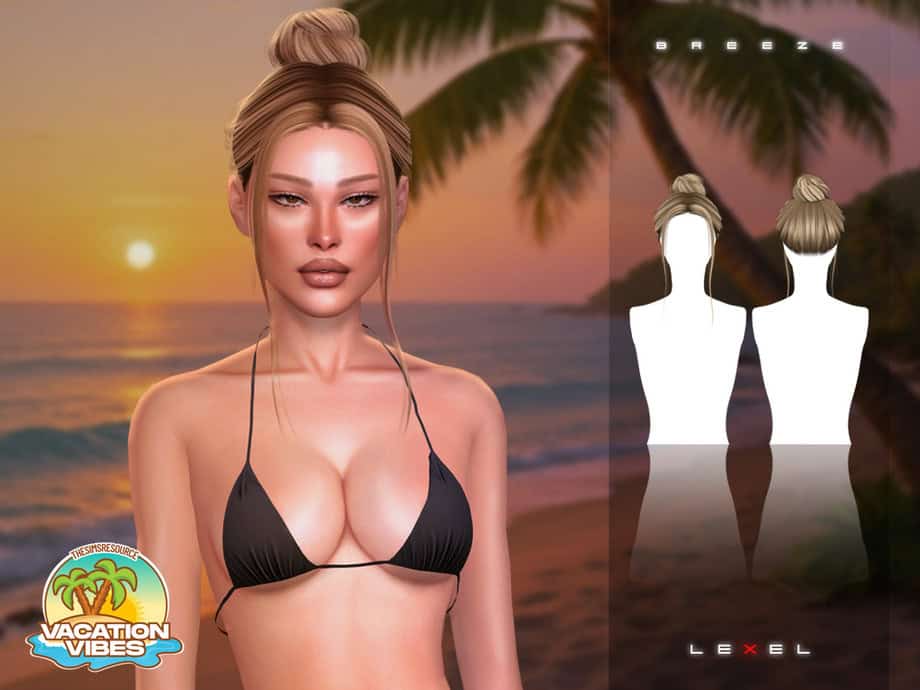
For those who love updos, the Breeze hair is a great choice. Updos are perfect for formal occasions like weddings, galas, or prom nights. They keep the hair out of your Sim’s face, and transform them into a classy, professional, romantic, or edgy Sim. This particular updo comes in 24 swatches. It’s designed for teen to elder Sims. For such hairstyles, check out our collection of Cute Sims 4 Bun Hairstyles.
How to Install
Follow these steps to install Breeze Adult Hair on your Sims 4 game:
- 1
Download the mod file from the link above. Sims 4 mods typically come as .package or .ts4script files.
- 2
Open your Sims 4 Mods folder. The default location is: Documents/Electronic Arts/The Sims 4/Mods
- 3
Place the downloaded file directly into the Mods folder. You can organize mods into subfolders up to one level deep.
- 4
Launch The Sims 4 and go to Game Options > Other. Make sure "Enable Custom Content and Mods" is checked.
- 5
Restart the game if it was already running. The mod should now appear in your game.
Important: Always back up your save files before installing new mods. After Sims 4 updates, mods may need to be re-downloaded or updated by the creator.
Compatibility
Platform
The Sims 4 (PC/Mac)
Requirements
- •Custom Content and Mods must be enabled in Game Options > Other
- •Script mods (.ts4script files) require "Script Mods Allowed" to be enabled separately
- •After each Sims 4 game update, some mods may need to be updated by the creator
Pro tip: If a mod stops working after a game update, check the creator's page for an updated version. Broken mods can cause the game to behave unexpectedly.
Frequently Asked Questions
More from LEXEL S
You Might Also Like
Breeze Adult Hair
Created by
0 ratings
downloads
favorites
views
Additional Information
Published
November 28, 2025
Source
MustHaveMods.com
Last Updated
January 25, 2026