About This Mod
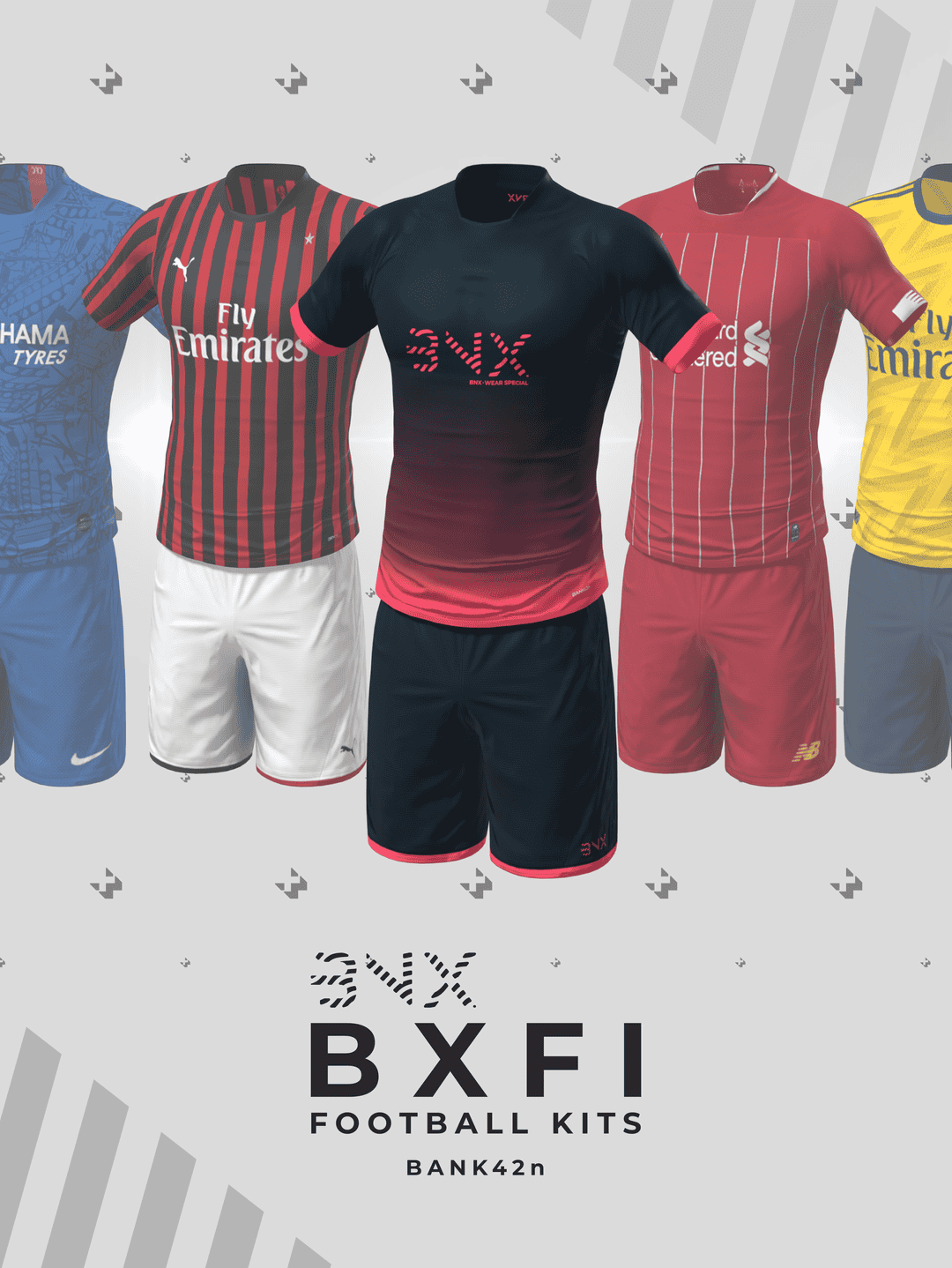
The BNX BXFI set brings the energy of the pitch to your virtual world with four soccer items. You’ll find a jersey, shorts, a badge, and a number for your male Sim. The pieces come in 17 swatches, 15 of which are styled after iconic football teams, like AC Milan, Barcelona, PSG, Manchester City, Argentina, and my favorite, Liverpool FC. I love how the creator got everything right, down to the minute detail. Note that the jersey numbers and badges are customizable, allowing you to print your lucky number on the back.
How to Install
Follow these steps to install BNX BXFI on your Sims 4 game:
- 1
Download the mod file from the link above. Sims 4 mods typically come as .package or .ts4script files.
- 2
Open your Sims 4 Mods folder. The default location is: Documents/Electronic Arts/The Sims 4/Mods
- 3
Place the downloaded file directly into the Mods folder. You can organize mods into subfolders up to one level deep.
- 4
Launch The Sims 4 and go to Game Options > Other. Make sure "Enable Custom Content and Mods" is checked.
- 5
Restart the game if it was already running. The mod should now appear in your game.
Important: Always back up your save files before installing new mods. After Sims 4 updates, mods may need to be re-downloaded or updated by the creator.
Compatibility
Platform
The Sims 4 (PC/Mac)
Requirements
- •Custom Content and Mods must be enabled in Game Options > Other
- •Script mods (.ts4script files) require "Script Mods Allowed" to be enabled separately
- •After each Sims 4 game update, some mods may need to be updated by the creator
Pro tip: If a mod stops working after a game update, check the creator's page for an updated version. Broken mods can cause the game to behave unexpectedly.
Frequently Asked Questions
More from Creator
You Might Also Like
BNX BXFI
Created by
Bnx Bxfi 43547119
0 ratings
downloads
favorites
views
Additional Information
Published
December 3, 2025
Source
MustHaveMods.com
Last Updated
May 18, 2026