Save this find
Create a free account and this mod is saved to your favorites.
About This Mod
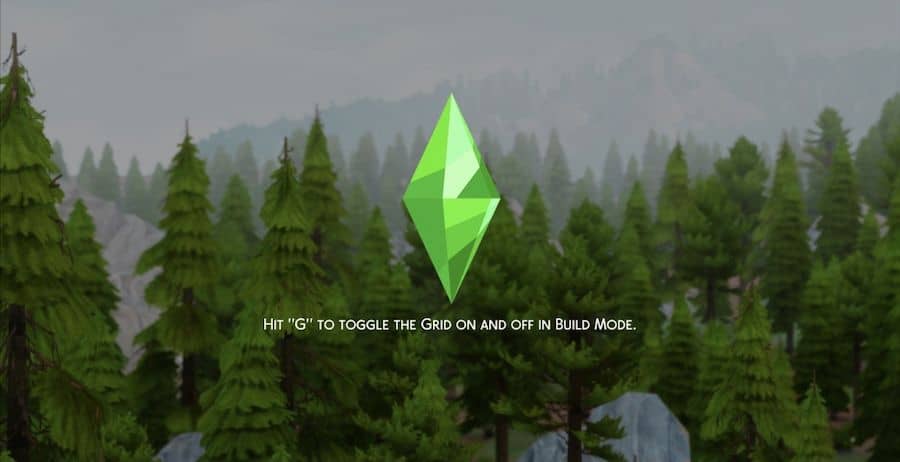
As you’ve seen, ghostlycc makes some pretty incredible loading screens and this one is a fan favorite. Personally, any time I am asked to think of my “happy place” I picture somewhere similar to this. There is something calming about dense, tall pine trees. With how long some of the loading screens are it wouldn’t be the worst thing to have a peaceful image to keep your nerves under control.
How to Install
Follow these steps to install Granite Falls Misty Forest Loading Screen on your Sims 4 game:
- 1
Download the mod file from the link above. Sims 4 mods typically come as .package or .ts4script files.
- 2
Open your Sims 4 Mods folder. The default location is: Documents/Electronic Arts/The Sims 4/Mods
- 3
Place the downloaded file directly into the Mods folder. You can organize mods into subfolders up to one level deep.
- 4
Launch The Sims 4 and go to Game Options > Other. Make sure "Enable Custom Content and Mods" is checked.
- 5
Restart the game if it was already running. The mod should now appear in your game.
Important: Always back up your save files before installing new mods. After Sims 4 updates, mods may need to be re-downloaded or updated by the creator.
Compatibility
Platform
The Sims 4 (PC/Mac)
Requirements
- •Custom Content and Mods must be enabled in Game Options > Other
- •Script mods (.ts4script files) require "Script Mods Allowed" to be enabled separately
- •After each Sims 4 game update, some mods may need to be updated by the creator
Pro tip: If a mod stops working after a game update, check the creator's page for an updated version. Broken mods can cause the game to behave unexpectedly.
Frequently Asked Questions
More from ghostlycc


You Might Also Like
Granite Falls Misty Forest Loading Screen
Created by
ghostlycc
0 ratings
downloads
favorites
views
Additional Information
Published
December 14, 2025
Source
MustHaveMods.com
Last Updated
June 23, 2026