About This Mod
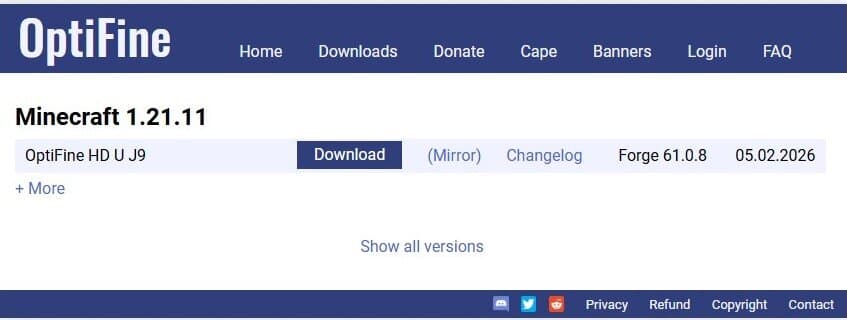
OptiFine remains one of the most popular Minecraft mods thanks to its all-in-one approach to graphics and performance improvements. It enhances the game’s visual settings while also improving FPS, so you get better performance without installing multiple separate mods. With OptiFine installed, you gain access to advanced video settings, dynamic lighting, connected textures, zoom functionality, and built-in shader support. I highly recommend using this mod to run shaders more smoothly. That said, OptiFine uses its own installation method and can sometimes conflict with large modern mod packs, especially Fabric setups. Please carefully read and follow the download instructions to avoid crashes or conflicts with other mods
How to Install
Follow these steps to install OptiFine on your Minecraft game:
- 1
Download the mod file from the link above. Most Minecraft mods come as .jar files.
- 2
Make sure you have the correct mod loader installed — either Forge or Fabric, depending on the mod requirements.
- 3
Open your Minecraft installation folder. On Windows, press Win+R and type %appdata%\.minecraft to find it.
- 4
Place the downloaded .jar file into the "mods" folder. If the folder doesn't exist, create it.
- 5
Launch Minecraft using the correct mod loader profile and verify the mod appears in the mod list.
Important: Always back up your save files before installing new mods. Make sure your mod loader version matches the Minecraft version required by this mod.
Compatibility
Platform
Minecraft: Java Edition
Requirements
- •Requires either Forge or Fabric mod loader (check the mod description for which one)
- •May require specific Minecraft version — verify before downloading
- •Some mods have dependencies on library mods like Architectury or Cloth Config
Pro tip: Always back up your world saves before installing new mods. Mod conflicts can occasionally cause world corruption.
Frequently Asked Questions
More from Creator
You Might Also Like
OptiFine
Created by
Optifine
0 ratings
downloads
favorites
views
Additional Information
Published
March 3, 2026
Source
MustHaveMods.com
Last Updated
August 9, 2026