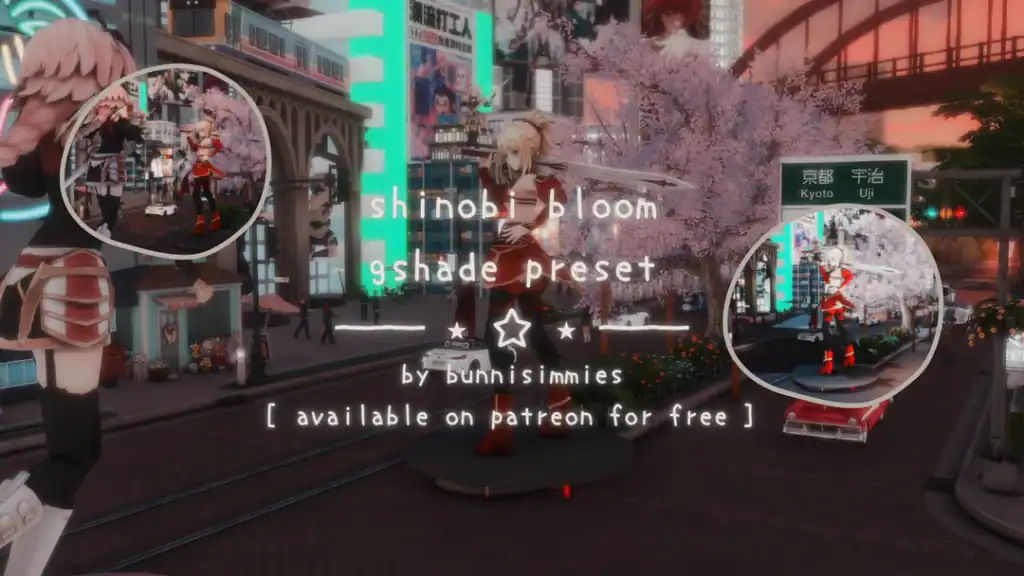
About This Mod
The Shinobi Bloom GShade preset is a dreamy, cinematic GShade inspired by anime-style visuals. Designed by bunnisimmies, this preset enhances bloom and depth effects by softening shadows. You’ll especially notice the difference in night city scenes, CAS portraits, and close-up shots, where the lighting balance creates a beautiful contrast between warmth and saturation. Despite its aesthetic complexity, it performs smoothly without major FPS drops, making it great for gameplay screenshots and in-game filming.
How to Install
Follow these steps to install Shinobi Bloom on your Sims 4 game:
- 1
Download the mod file from the link above. Sims 4 mods typically come as .package or .ts4script files.
- 2
Open your Sims 4 Mods folder. The default location is: Documents/Electronic Arts/The Sims 4/Mods
- 3
Place the downloaded file directly into the Mods folder. You can organize mods into subfolders up to one level deep.
- 4
Launch The Sims 4 and go to Game Options > Other. Make sure "Enable Custom Content and Mods" is checked.
- 5
Restart the game if it was already running. The mod should now appear in your game.
Important: Always back up your save files before installing new mods. After Sims 4 updates, mods may need to be re-downloaded or updated by the creator.
Compatibility
Platform
The Sims 4 (PC/Mac)
Requirements
- •Custom Content and Mods must be enabled in Game Options > Other
- •Script mods (.ts4script files) require "Script Mods Allowed" to be enabled separately
- •After each Sims 4 game update, some mods may need to be updated by the creator
Pro tip: If a mod stops working after a game update, check the creator's page for an updated version. Broken mods can cause the game to behave unexpectedly.
Frequently Asked Questions
More from Creator
You Might Also Like
Get the best new Sims 4 mods weekly
New CC drops, curated finds, and free mod roundups — straight to your inbox.
Shinobi Bloom
Created by
Gshade Preset 126412866
0 ratings
downloads
favorites
views
Additional Information
Published
January 7, 2026
Source
MustHaveMods.com
Last Updated
September 6, 2026