About This Mod
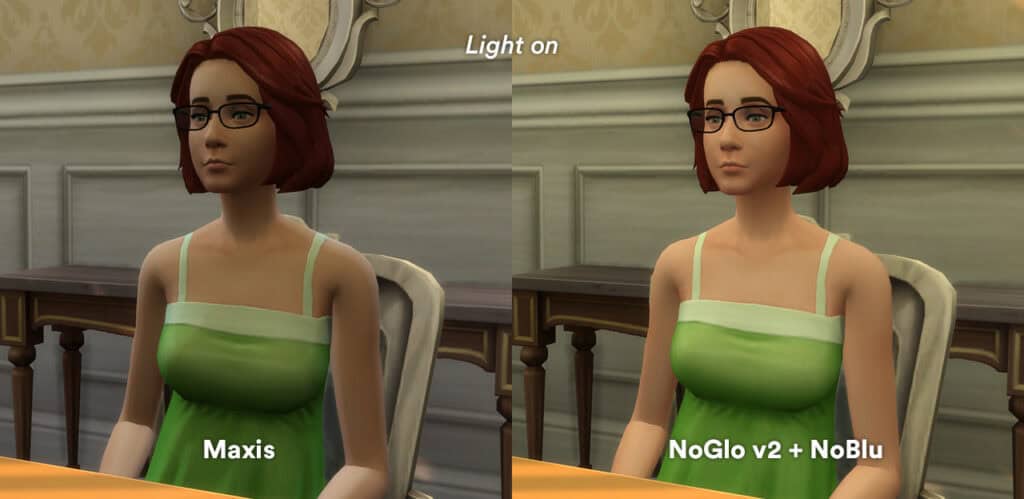
The default game adds a blue or gray filter over indoor spaces, especially during certain times of day. No Gloom and No Blu removes those tints and brightens interiors, making skin tones look cleaner and walls less dull. I like using this lighting mod to take CAS or gameplay screenshots inside homes. It instantly improves clarity without changing the rest of the game’s lighting. The mod has been updated to work with the latest EA patch, so remove any previous versions from your mod file. Please carefully read the instructions in the post before adding this to your game.
How to Install
Follow these steps to install Luumia’s No Gloom / No Blu on your Sims 4 game:
- 1
Download the mod file from the link above. Sims 4 mods typically come as .package or .ts4script files.
- 2
Open your Sims 4 Mods folder. The default location is: Documents/Electronic Arts/The Sims 4/Mods
- 3
Place the downloaded file directly into the Mods folder. You can organize mods into subfolders up to one level deep.
- 4
Launch The Sims 4 and go to Game Options > Other. Make sure "Enable Custom Content and Mods" is checked.
- 5
Restart the game if it was already running. The mod should now appear in your game.
Important: Always back up your save files before installing new mods. After Sims 4 updates, mods may need to be re-downloaded or updated by the creator.
Compatibility
Platform
The Sims 4 (PC/Mac)
Requirements
- •Custom Content and Mods must be enabled in Game Options > Other
- •Script mods (.ts4script files) require "Script Mods Allowed" to be enabled separately
- •After each Sims 4 game update, some mods may need to be updated by the creator
Pro tip: If a mod stops working after a game update, check the creator's page for an updated version. Broken mods can cause the game to behave unexpectedly.
Frequently Asked Questions
More from Creator
You Might Also Like
Luumia’s No Gloom / No Blu
Created by
Luumiasims
0 ratings
downloads
favorites
views
Additional Information
Published
December 13, 2025
Source
MustHaveMods.com
Last Updated
June 26, 2026