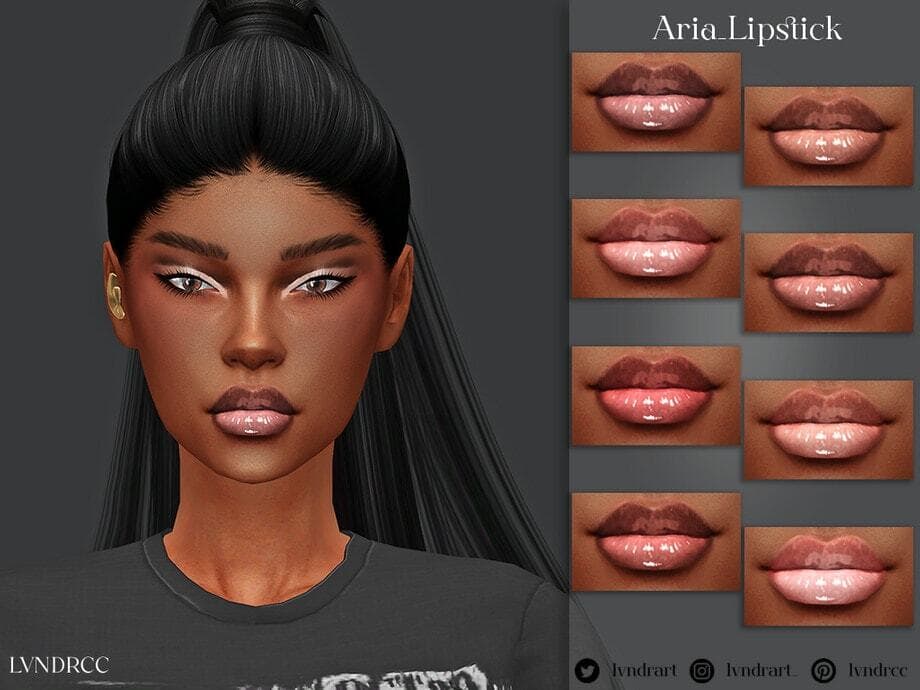
About This Mod
If you’re looking for a high-shine, ultra-glossy lipgloss, get the Aria Lipstick. It’s designed to give your Sims that polished, hydrated pout. It comes in a stunning range of soft pinks, creamy nudes, and warm peach tones, all with a glass-like finish that catches the light beautifully. This lipstick looks stunning on melanin-rich skin tones, whether your Sim is serving an everyday natural look or full glam. I love how the slight gradient effect makes your Sim’s lips appear plush and kissable. You can pair the lipstick with a bold eyeshadow, as shown in the picture above.
How to Install
Follow these steps to install Aria Lipstick on your Sims 4 game:
- 1
Download the mod file from the link above. Sims 4 mods typically come as .package or .ts4script files.
- 2
Open your Sims 4 Mods folder. The default location is: Documents/Electronic Arts/The Sims 4/Mods
- 3
Place the downloaded file directly into the Mods folder. You can organize mods into subfolders up to one level deep.
- 4
Launch The Sims 4 and go to Game Options > Other. Make sure "Enable Custom Content and Mods" is checked.
- 5
Restart the game if it was already running. The mod should now appear in your game.
Important: Always back up your save files before installing new mods. After Sims 4 updates, mods may need to be re-downloaded or updated by the creator.
Compatibility
Platform
The Sims 4 (PC/Mac)
Requirements
- •Custom Content and Mods must be enabled in Game Options > Other
- •Script mods (.ts4script files) require "Script Mods Allowed" to be enabled separately
- •After each Sims 4 game update, some mods may need to be updated by the creator
Pro tip: If a mod stops working after a game update, check the creator's page for an updated version. Broken mods can cause the game to behave unexpectedly.
Frequently Asked Questions
More from Creator
You Might Also Like
Aria Lipstick
Created by
LVNDRCC
0 ratings
downloads
favorites
views
Additional Information
Published
January 13, 2026
Source
MustHaveMods.com
Last Updated
May 25, 2026