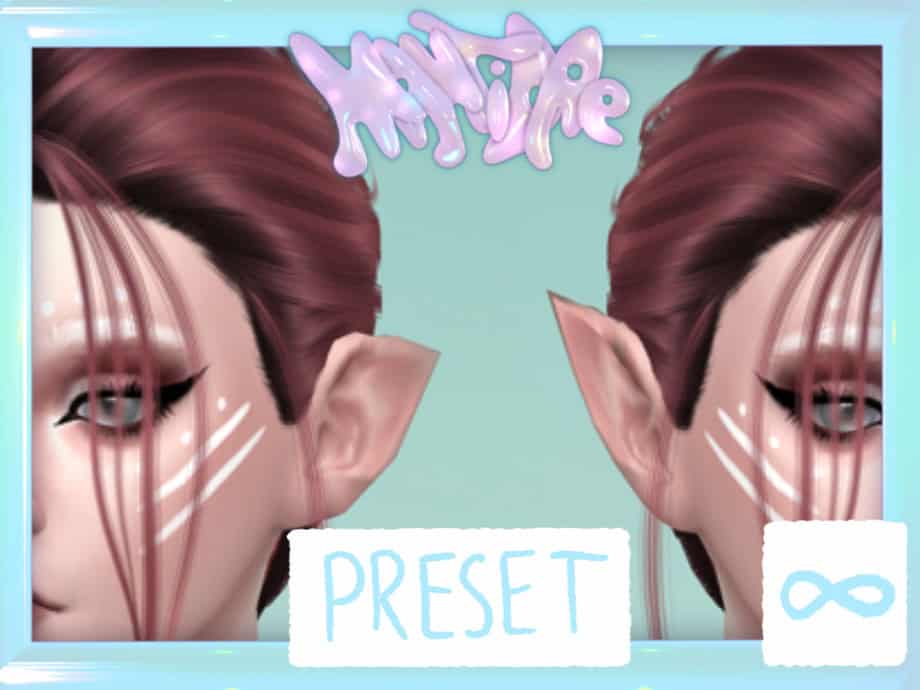
About This Mod
Pointed Ear Presets V1 includes two custom pointed-ear shapes designed for Sims who need a sharper, fantasy-style ear profile. The presets include both upward and backward-angled variations, giving you more flexibility when shaping elven or occult characters. These Sims 4 ear presets appear in the ear preset section in CAS and can be adjusted for size and angle using ear sliders. They work with all occult types, including aliens and vampires, and won’t appear on randomly generated Sims.
How to Install
Follow these steps to install Pointed Ear Presets V1 on your Sims 4 game:
- 1
Download the mod file from the link above. Sims 4 mods typically come as .package or .ts4script files.
- 2
Open your Sims 4 Mods folder. The default location is: Documents/Electronic Arts/The Sims 4/Mods
- 3
Place the downloaded file directly into the Mods folder. You can organize mods into subfolders up to one level deep.
- 4
Launch The Sims 4 and go to Game Options > Other. Make sure "Enable Custom Content and Mods" is checked.
- 5
Restart the game if it was already running. The mod should now appear in your game.
Important: Always back up your save files before installing new mods. After Sims 4 updates, mods may need to be re-downloaded or updated by the creator.
Compatibility
Platform
The Sims 4 (PC/Mac)
Requirements
- •Custom Content and Mods must be enabled in Game Options > Other
- •Script mods (.ts4script files) require "Script Mods Allowed" to be enabled separately
- •After each Sims 4 game update, some mods may need to be updated by the creator
Pro tip: If a mod stops working after a game update, check the creator's page for an updated version. Broken mods can cause the game to behave unexpectedly.
Frequently Asked Questions
More from Creator
You Might Also Like
Pointed Ear Presets V1
Created by
ProbablyOatmeal
0 ratings
downloads
favorites
views
Additional Information
Published
March 5, 2026
Source
MustHaveMods.com
Last Updated
June 23, 2026