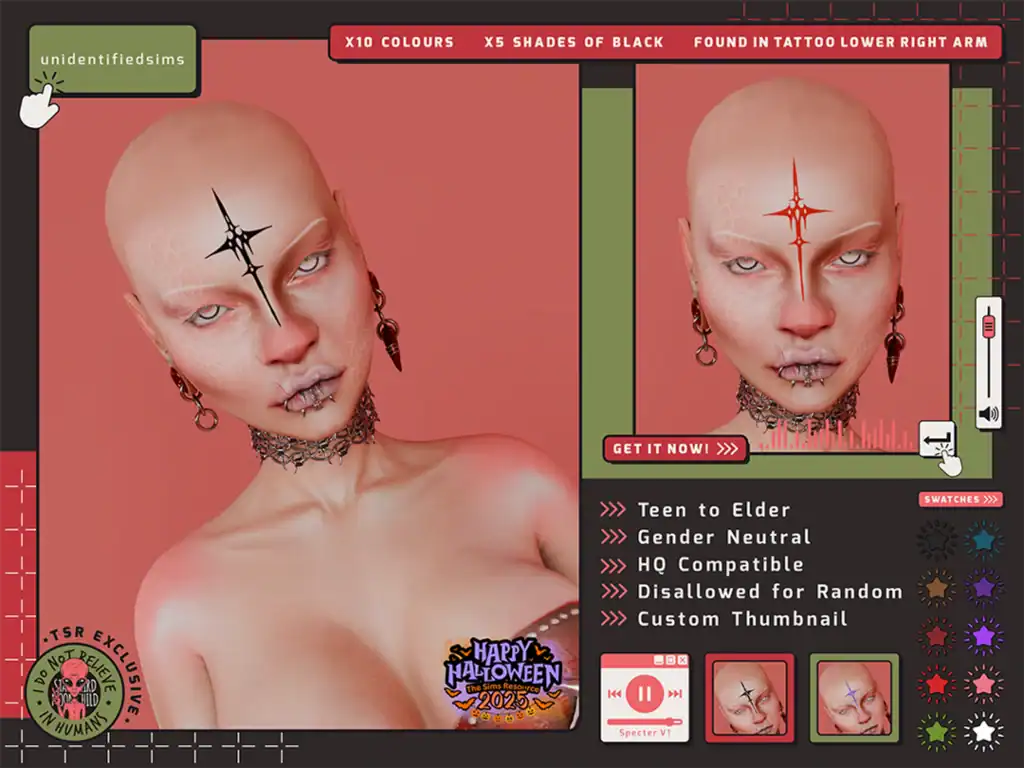
About This Mod
Specter V1 Tattoo is a must-have pack with its sharp, cross-like symbol placed right on the forehead. The look leans heavily into a dark, alternative aesthetic, making it perfect for Sims with a bold, edgy, or slightly supernatural vibe. You get 10 options along with 5 shades of black. It’s designed for teens to elderly Sims and works for all genders. This set is compatible with the base game, making it an easy add to any setup.
How to Install
Follow these steps to install Specter V1 Tattoo on your Sims 4 game:
- 1
Download the mod file from the link above. Sims 4 mods typically come as .package or .ts4script files.
- 2
Open your Sims 4 Mods folder. The default location is: Documents/Electronic Arts/The Sims 4/Mods
- 3
Place the downloaded file directly into the Mods folder. You can organize mods into subfolders up to one level deep.
- 4
Launch The Sims 4 and go to Game Options > Other. Make sure "Enable Custom Content and Mods" is checked.
- 5
Restart the game if it was already running. The mod should now appear in your game.
Important: Always back up your save files before installing new mods. After Sims 4 updates, mods may need to be re-downloaded or updated by the creator.
Compatibility
Platform
The Sims 4 (PC/Mac)
Requirements
- •Custom Content and Mods must be enabled in Game Options > Other
- •Script mods (.ts4script files) require "Script Mods Allowed" to be enabled separately
- •After each Sims 4 game update, some mods may need to be updated by the creator
Pro tip: If a mod stops working after a game update, check the creator's page for an updated version. Broken mods can cause the game to behave unexpectedly.
Frequently Asked Questions
More from Creator
You Might Also Like
Get the best new Sims 4 mods weekly
New CC drops, curated finds, and free mod roundups — straight to your inbox.
Specter V1 Tattoo
Created by
Unknown Creator
0 ratings
downloads
favorites
views
Additional Information
Published
May 4, 2026
Source
MustHaveMods.com
Last Updated
August 9, 2026