About This Mod
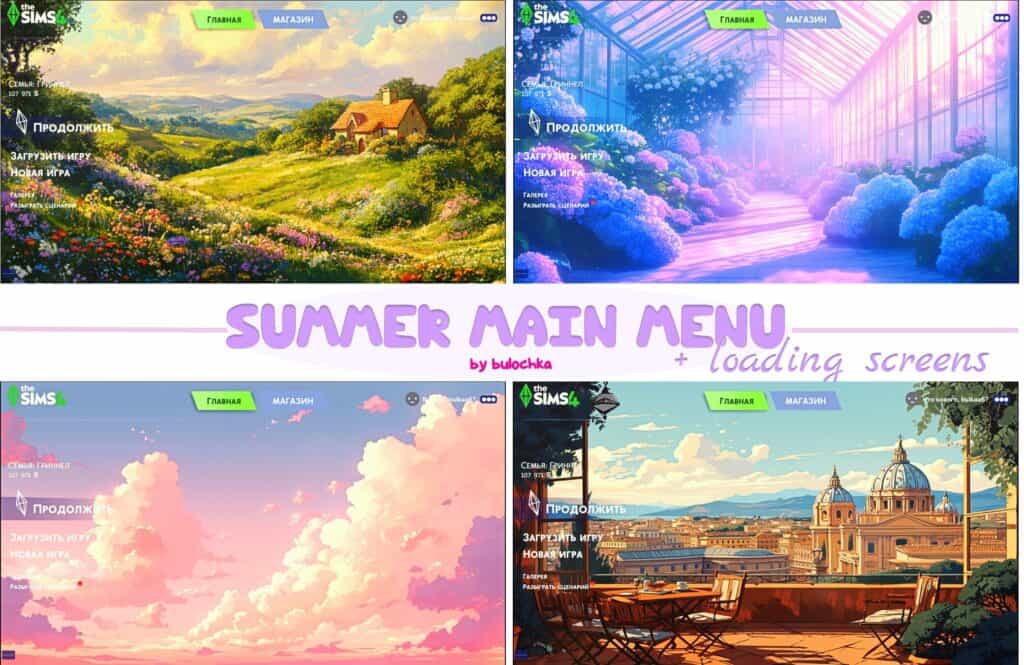
Summer Main Menu + Loading Screens replaces both your Sims 4 main menu and loading screens with bright, pastel-inspired artwork perfect for the warmer months. You can choose from four beautifully illustrated themes, including a colorful countryside cottage, a dreamy greenhouse filled with hydrangeas, fluffy pink sunset clouds, and a scenic European-style city overlooking domed rooftops. I love that each option gives your game a fresh seasonal makeover before you even enter a save file. The menus are designed in a crisp 2560×1440 resolution, and color saturation may vary slightly depending on your preset or reshade. You can also open or close the character and advertisements by pressing the T key while on the main menu. RELATED POST: 24+ Best Sims 4 Main Menu Overrides for 2025 + How to Install & FAQs
How to Install
Follow these steps to install Summer Main Menu + Loading Screens on your Sims 4 game:
- 1
Download the mod file from the link above. Sims 4 mods typically come as .package or .ts4script files.
- 2
Open your Sims 4 Mods folder. The default location is: Documents/Electronic Arts/The Sims 4/Mods
- 3
Place the downloaded file directly into the Mods folder. You can organize mods into subfolders up to one level deep.
- 4
Launch The Sims 4 and go to Game Options > Other. Make sure "Enable Custom Content and Mods" is checked.
- 5
Restart the game if it was already running. The mod should now appear in your game.
Important: Always back up your save files before installing new mods. After Sims 4 updates, mods may need to be re-downloaded or updated by the creator.
Compatibility
Platform
The Sims 4 (PC/Mac)
Requirements
- •Custom Content and Mods must be enabled in Game Options > Other
- •Script mods (.ts4script files) require "Script Mods Allowed" to be enabled separately
- •After each Sims 4 game update, some mods may need to be updated by the creator
Pro tip: If a mod stops working after a game update, check the creator's page for an updated version. Broken mods can cause the game to behave unexpectedly.
Frequently Asked Questions
More from Creator
You Might Also Like
Get the best new Sims 4 mods weekly
New CC drops, curated finds, and free mod roundups — straight to your inbox.
Summer Main Menu + Loading Screens
Created by
Bulochkaa
0 ratings
downloads
favorites
views
Additional Information
Published
July 23, 2026
Source
MustHaveMods.com
Last Updated
August 9, 2026