Also in:Build CC
Save this find
Create a free account and this mod is saved to your favorites.
About This Mod
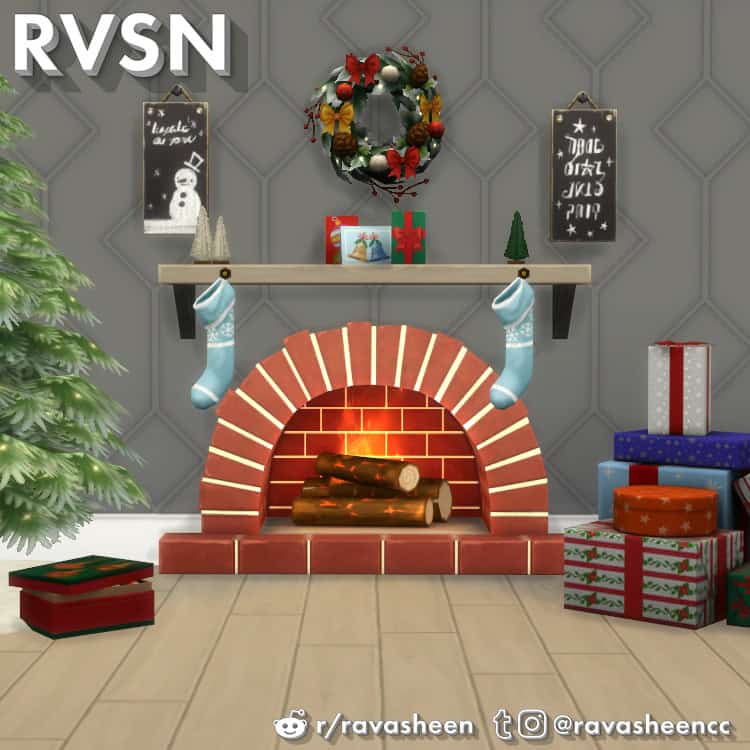
Some creators have developed functional “fireplace inserts” that can be hidden behind custom facades for a distinctive look.. This collection has a few inserts you can use in your cozy build. These include: Use these items to make your fireplace more realistic and life-like.
How to Install
Follow these steps to install Feel The Burn Fireplace Inserts on your Sims 4 game:
- 1
Download the mod file from the link above. Sims 4 mods typically come as .package or .ts4script files.
- 2
Open your Sims 4 Mods folder. The default location is: Documents/Electronic Arts/The Sims 4/Mods
- 3
Place the downloaded file directly into the Mods folder. You can organize mods into subfolders up to one level deep.
- 4
Launch The Sims 4 and go to Game Options > Other. Make sure "Enable Custom Content and Mods" is checked.
- 5
Restart the game if it was already running. The mod should now appear in your game.
Important: Always back up your save files before installing new mods. After Sims 4 updates, mods may need to be re-downloaded or updated by the creator.
Compatibility
Platform
The Sims 4 (PC/Mac)
Requirements
- •Custom Content and Mods must be enabled in Game Options > Other
- •Script mods (.ts4script files) require "Script Mods Allowed" to be enabled separately
- •After each Sims 4 game update, some mods may need to be updated by the creator
Pro tip: If a mod stops working after a game update, check the creator's page for an updated version. Broken mods can cause the game to behave unexpectedly.
Frequently Asked Questions
More from Ravasheen
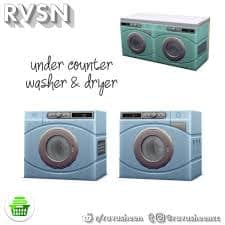
Functional Washers and Dryers

Sleek Sims 4 Kitchen
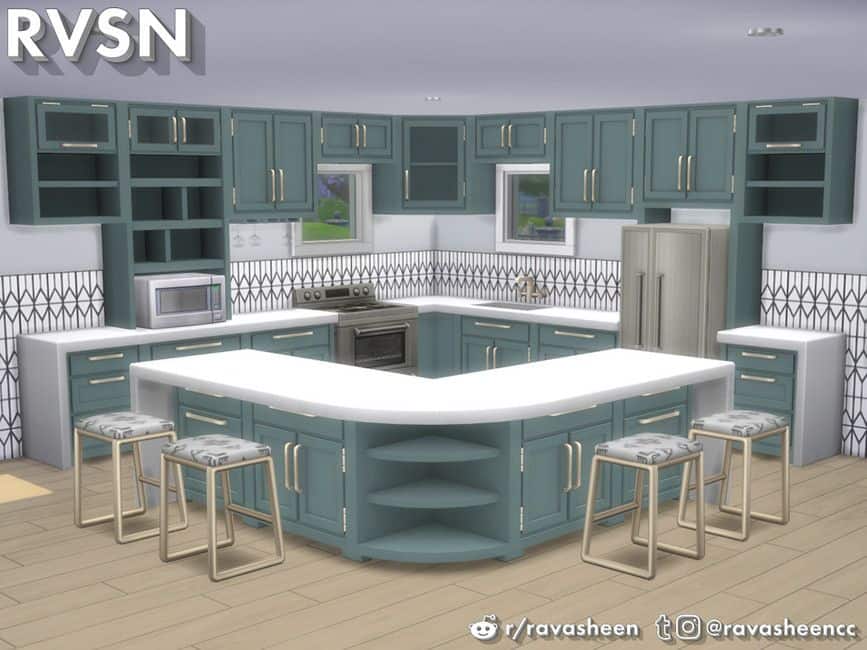
Sims 4 Kitchen CC Set
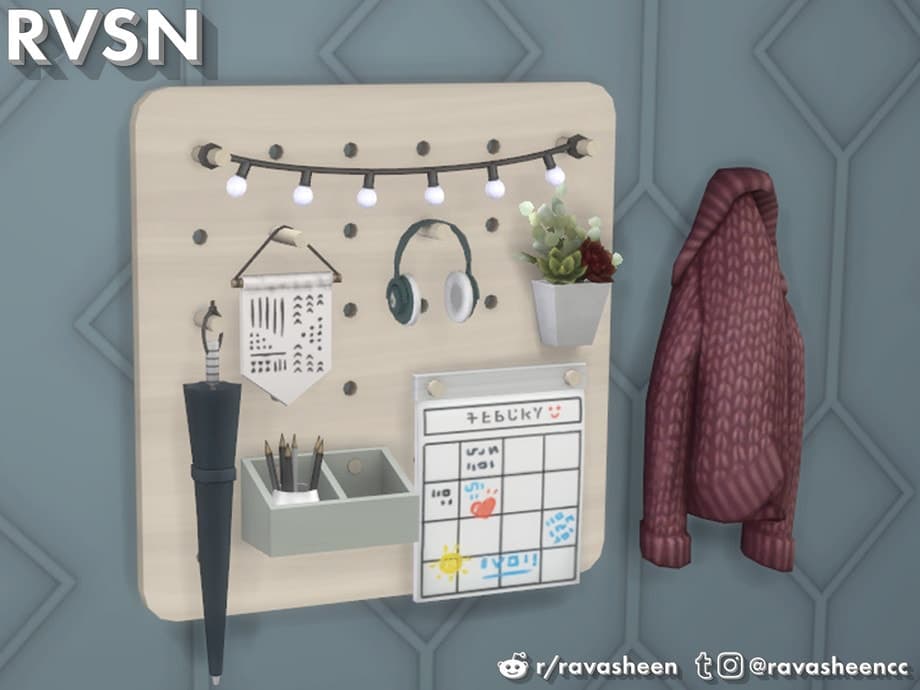
Peg To Differ Entry Way Set

Bus Upon a Time – Travel Mod

Bidet As It May Bathroom Set
You Might Also Like
Feel The Burn Fireplace Inserts
Created by
0 ratings
downloads
favorites
views
Additional Information
Published
January 5, 2026
Source
MustHaveMods.com
Last Updated
November 16, 2026