Also in:Build CC
Save this find
Create a free account and this mod is saved to your favorites.
About This Mod
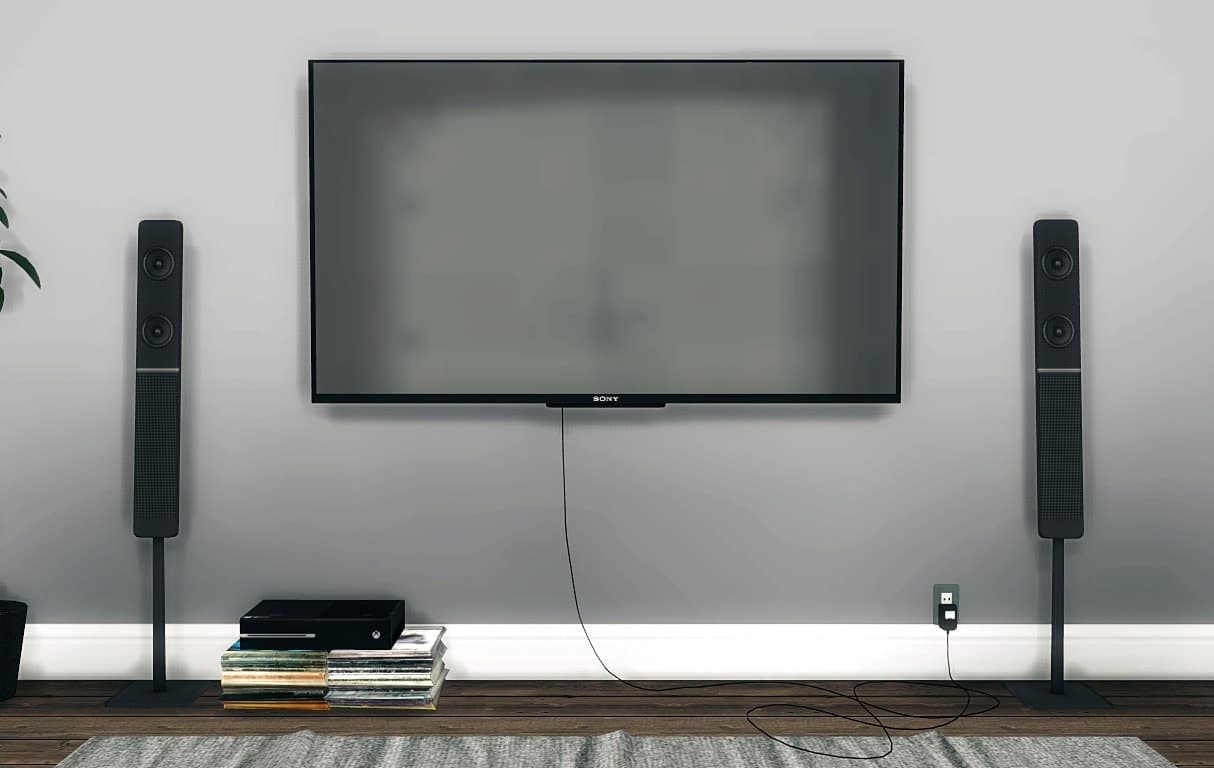
If you’re looking for a sleek and realistic centerpiece for your Sim’s entertainment space, check out the Sony Wall Mounted TV. This ultra-flat screen TV set is the first part of the creator’s Thanksgiving gift after reaching 7,500 followers. It features a modern finish with the “SONY” logo at the bottom, adding a touch of realism and style to your Sim’s space. You’ll find the TV in two sizes: big and small, which makes it perfect for both spacious rooms and smaller, cozy entertainment spaces. Note that the cable and socket setup in the preview is not part of the downloadable package.
How to Install
Follow these steps to install Sony Wall Mounted TV on your Sims 4 game:
- 1
Download the mod file from the link above. Sims 4 mods typically come as .package or .ts4script files.
- 2
Open your Sims 4 Mods folder. The default location is: Documents/Electronic Arts/The Sims 4/Mods
- 3
Place the downloaded file directly into the Mods folder. You can organize mods into subfolders up to one level deep.
- 4
Launch The Sims 4 and go to Game Options > Other. Make sure "Enable Custom Content and Mods" is checked.
- 5
Restart the game if it was already running. The mod should now appear in your game.
Important: Always back up your save files before installing new mods. After Sims 4 updates, mods may need to be re-downloaded or updated by the creator.
Compatibility
Platform
The Sims 4 (PC/Mac)
Requirements
- •Custom Content and Mods must be enabled in Game Options > Other
- •Script mods (.ts4script files) require "Script Mods Allowed" to be enabled separately
- •After each Sims 4 game update, some mods may need to be updated by the creator
Pro tip: If a mod stops working after a game update, check the creator's page for an updated version. Broken mods can cause the game to behave unexpectedly.
Frequently Asked Questions
You Might Also Like
Sony Wall Mounted TV
Created by
Mxims
0 ratings
downloads
favorites
views
Additional Information
Published
January 12, 2026
Source
MustHaveMods.com
Last Updated
October 24, 2026