Also in:Build CC
Save this find
Create a free account and this mod is saved to your favorites.
About This Mod
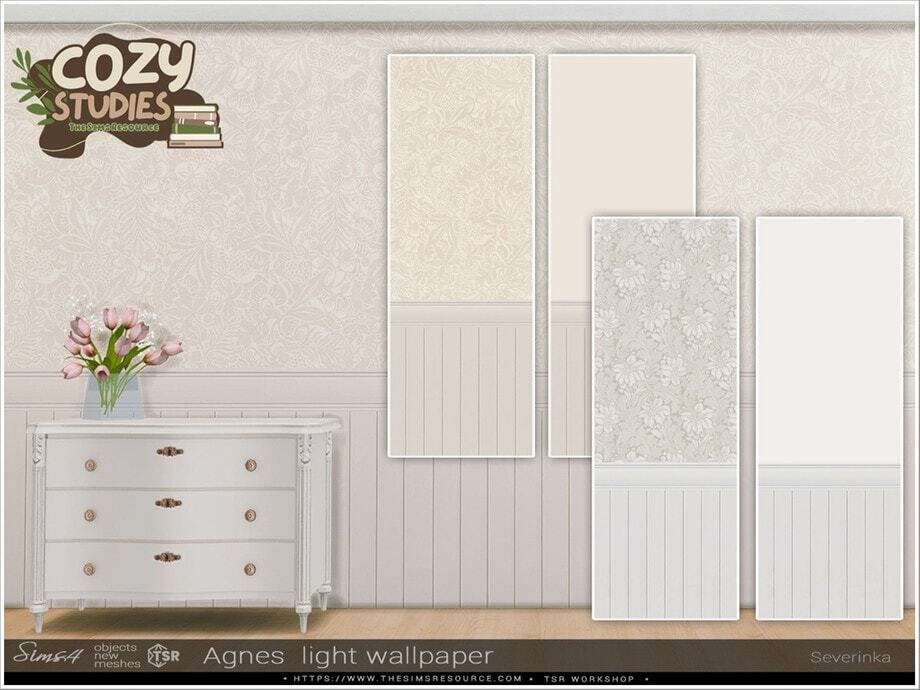
If you’re looking for a simple, plain Sims 4 wallpaper cc to add to your Sim’s place, check out the Agnes Light Wallpaper. It’s a neutral-toned wallpaper that comes in light white and beige shades. I find these colors perfect for my study or work area. The cozy, warm color scheme creates a fuzzy ambience ideal for a good study or work session. Note that you can use the wallpaper on any wall height.
How to Install
Follow these steps to install Agnes Light Wallpaper on your Sims 4 game:
- 1
Download the mod file from the link above. Sims 4 mods typically come as .package or .ts4script files.
- 2
Open your Sims 4 Mods folder. The default location is: Documents/Electronic Arts/The Sims 4/Mods
- 3
Place the downloaded file directly into the Mods folder. You can organize mods into subfolders up to one level deep.
- 4
Launch The Sims 4 and go to Game Options > Other. Make sure "Enable Custom Content and Mods" is checked.
- 5
Restart the game if it was already running. The mod should now appear in your game.
Important: Always back up your save files before installing new mods. After Sims 4 updates, mods may need to be re-downloaded or updated by the creator.
Compatibility
Platform
The Sims 4 (PC/Mac)
Requirements
- •Custom Content and Mods must be enabled in Game Options > Other
- •Script mods (.ts4script files) require "Script Mods Allowed" to be enabled separately
- •After each Sims 4 game update, some mods may need to be updated by the creator
Pro tip: If a mod stops working after a game update, check the creator's page for an updated version. Broken mods can cause the game to behave unexpectedly.
Frequently Asked Questions
More from Severinka_
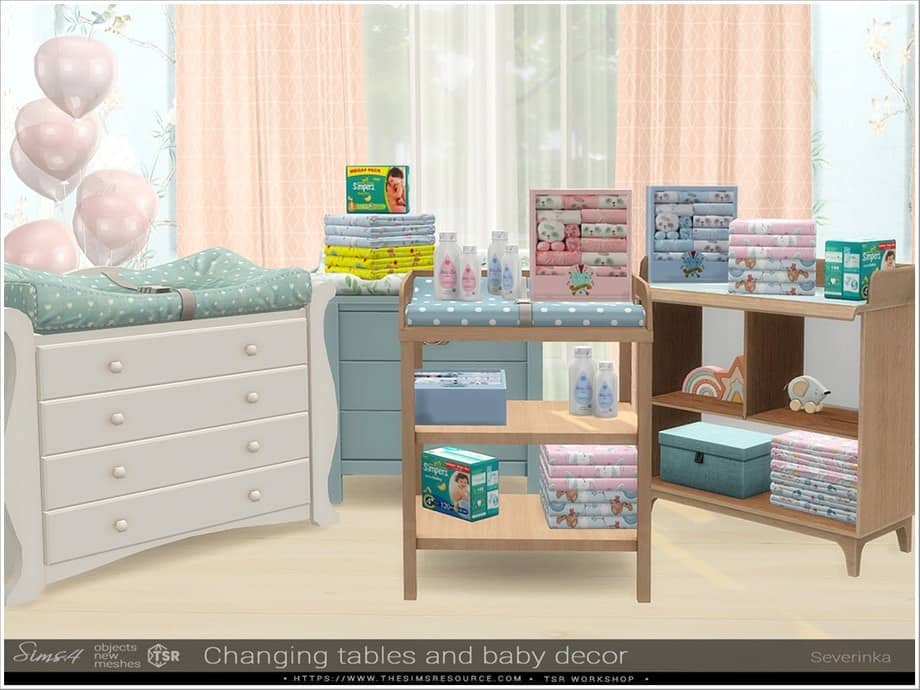
Changing Tables and Baby Decor
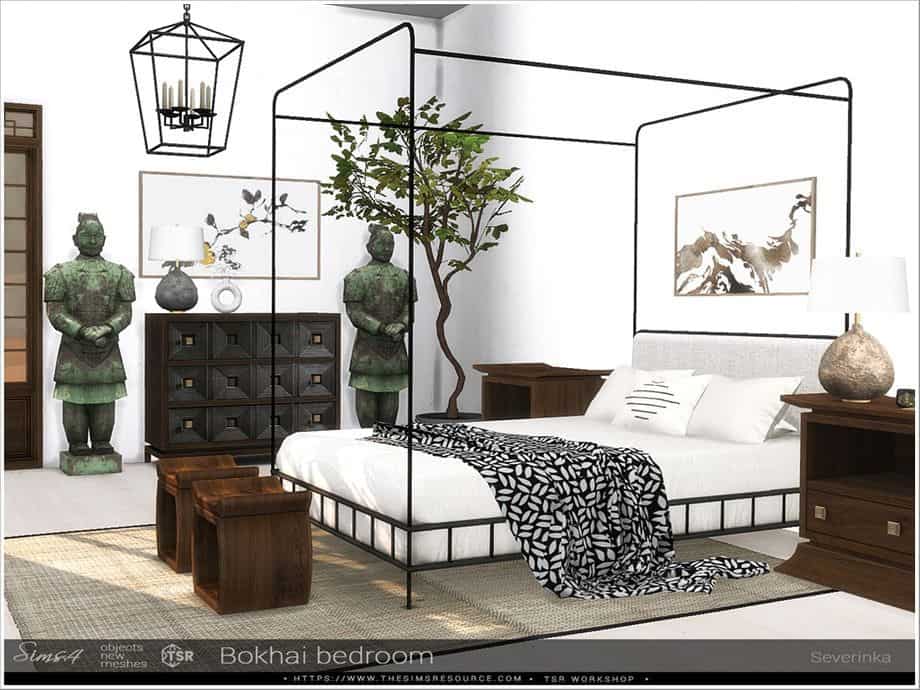
Bokhai Bedroom for Sims

Atreya Dining Room Pt.1
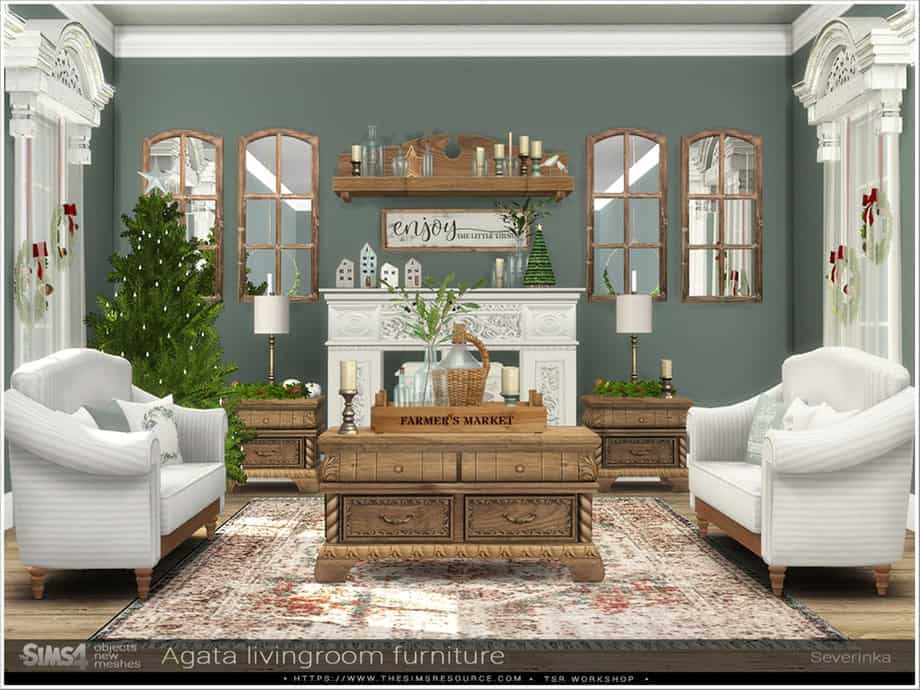
Agota Livingroom
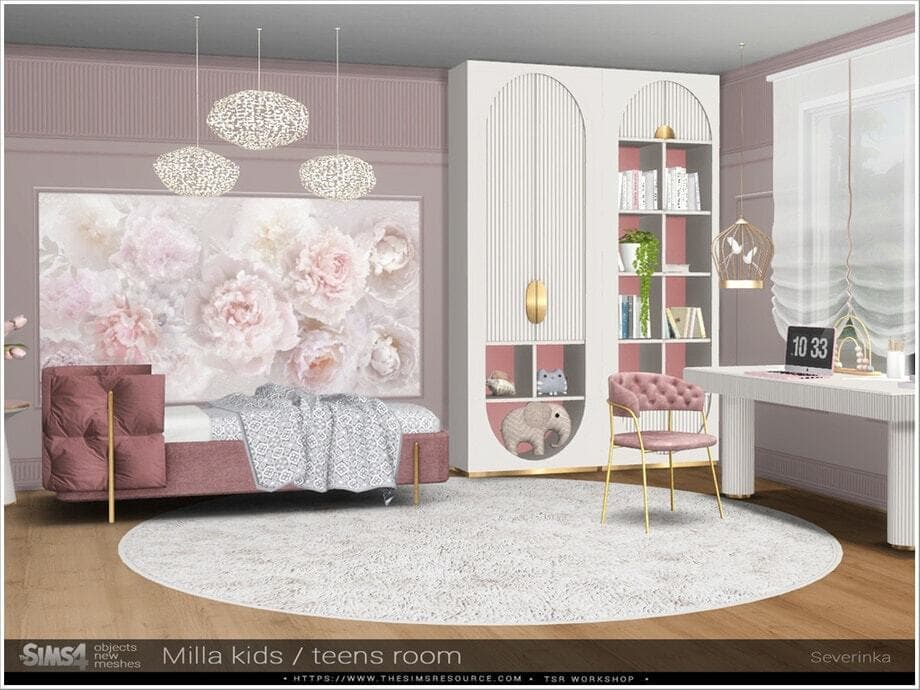
Mila Kids Room
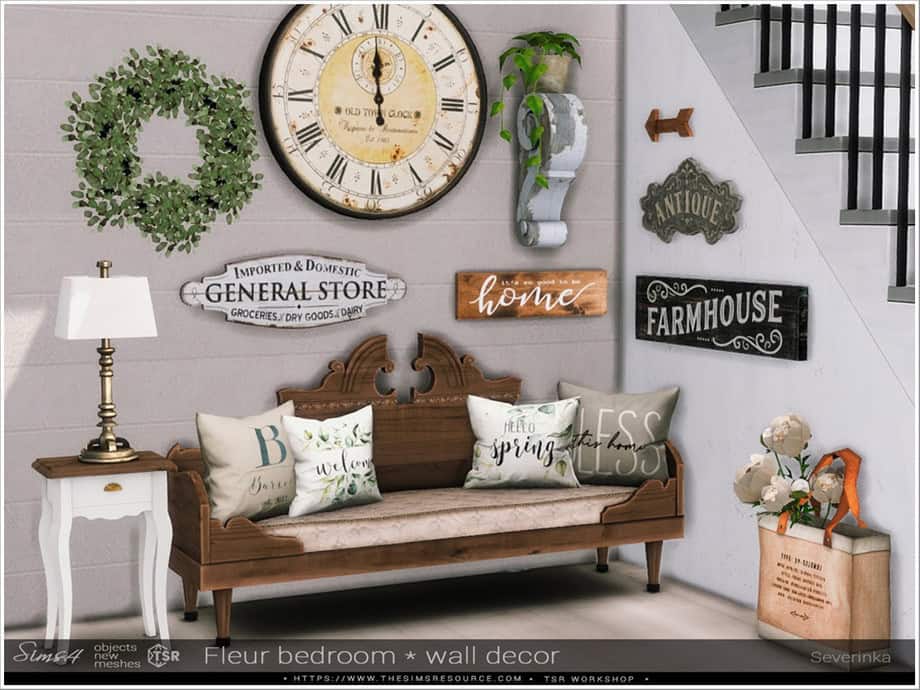
Fleur Holiday Part 2 Wall Decor
You Might Also Like
Agnes Light Wallpaper
Created by
0 ratings
downloads
favorites
views
Additional Information
Published
January 5, 2026
Source
MustHaveMods.com
Last Updated
November 20, 2026