Save this find
Create a free account and this mod is saved to your favorites.
About This Mod
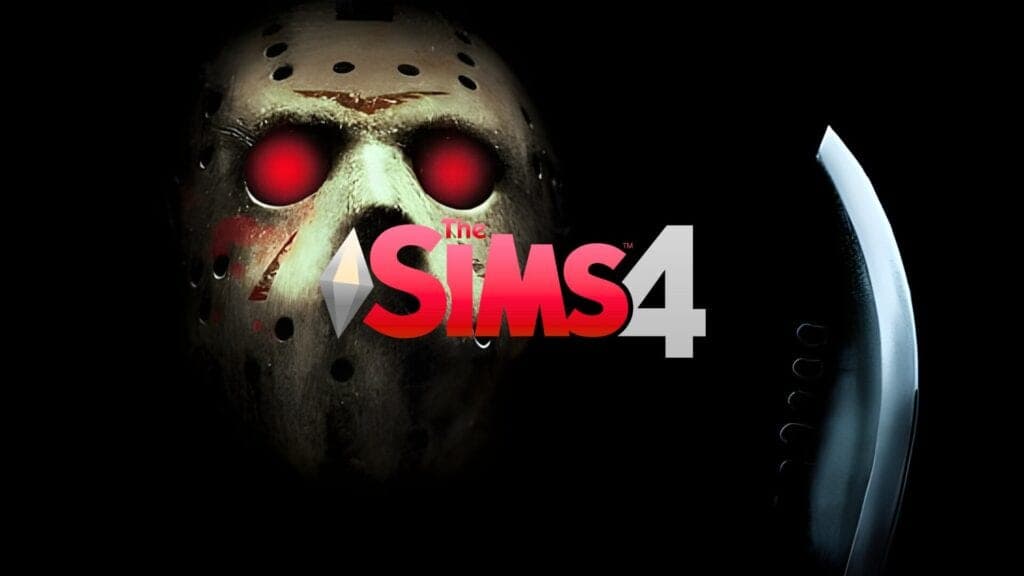
Jason Voorhees Screen Collection is a horror-themed set inspired by Friday the 13th, one of my favorite childhood horror movies. The collection includes a custom loading screen covered in Jason Voorhees’ iconic hockey masks, complete with blood splatters and red accents. You’ll also find a matching main menu override with Jason’s mask, glowing red eyes, a machete, and the Friday the 13th logo. I love how the dark background and bloody details capture the terrifying atmosphere of the movie. It’s a great choice if you want something genuinely creepy for your Sims 4 Halloween setup. For the custom main menu to work, you must have the SimMattically – RefreshedMainMenu3 BASE package installed. You must also keep the #, $, or $# symbols and the numbers at the end of the main menu file name. These are necessary for SimMattically’s main menu mod to display the background correctly in your game. Click on the attached link for more information on this Sims 4 Halloween screen collection, including installation instructions and download requirements.
How to Install
Follow these steps to install Jason Voorhees Screen Collection on your Sims 4 game:
- 1
Download the mod file from the link above. Sims 4 mods typically come as .package or .ts4script files.
- 2
Open your Sims 4 Mods folder. The default location is: Documents/Electronic Arts/The Sims 4/Mods
- 3
Place the downloaded file directly into the Mods folder. You can organize mods into subfolders up to one level deep.
- 4
Launch The Sims 4 and go to Game Options > Other. Make sure "Enable Custom Content and Mods" is checked.
- 5
Restart the game if it was already running. The mod should now appear in your game.
Important: Always back up your save files before installing new mods. After Sims 4 updates, mods may need to be re-downloaded or updated by the creator.
Compatibility
Platform
The Sims 4 (PC/Mac)
Requirements
- •Custom Content and Mods must be enabled in Game Options > Other
- •Script mods (.ts4script files) require "Script Mods Allowed" to be enabled separately
- •After each Sims 4 game update, some mods may need to be updated by the creator
Pro tip: If a mod stops working after a game update, check the creator's page for an updated version. Broken mods can cause the game to behave unexpectedly.
Frequently Asked Questions
More from Anibabe
You Might Also Like
Jason Voorhees Screen Collection
Created by
Anibabe
0 ratings
downloads
favorites
views
Additional Information
Published
October 14, 2026
Source
MustHaveMods.com
Last Updated
October 14, 2026