
How to Install Minecraft Mods in 2026(Forge & Fabric Guide)
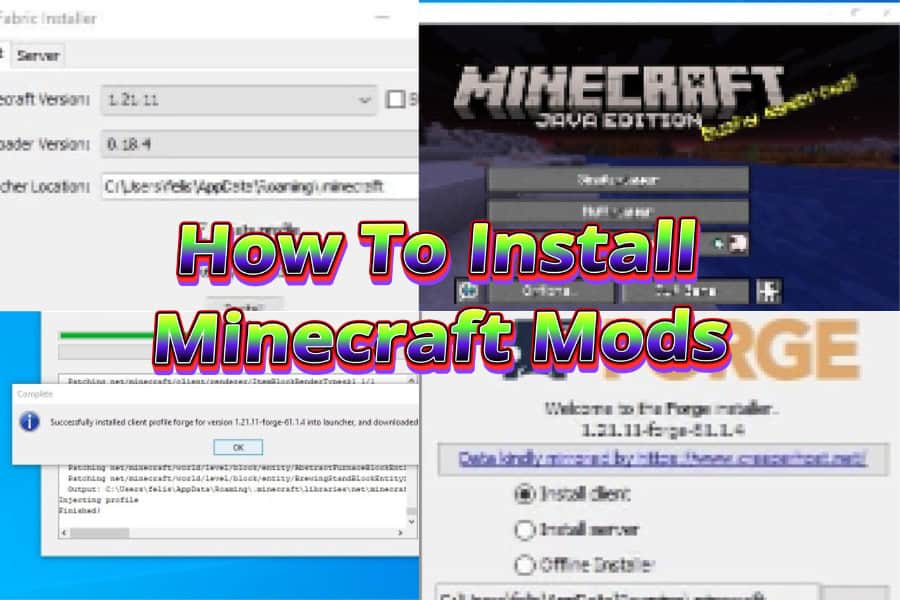
Do you want to know how to install Minecraft mods safely in 2026? You’re in the right place.
Installing Minecraft mods is actually quite simple once you understand the basics. Most mods require a mod loader, usually Forge or Fabric, which allows the game to run custom content without breaking the core files.
In this guide, you’ll learn how to install Minecraft mods step by step using Forge and Fabric, where to place mod files, and how to fix common installation issues if something goes wrong.
If you’re still looking for mods to try, check out our Best Minecraft Mods 2026 list for some great options to start with.
What Are Minecraft Mods?
Minecraft mods are user-created modifications designed to change or expand the game beyond its original features. These mods let you customize your experience by adding new content, improving performance, or altering gameplay mechanics.
Some mods introduce entirely new systems like machines, magic, or farming mechanics, while others focus on smaller improvements such as better inventory management or enhanced visuals.
Minecraft mods generally fall into a few common categories:
- Gameplay mods: These add new mobs, items, dimensions, or mechanics
- Performance mods: These improve FPS and reduce lag
- Quality-of-life mods: These make everyday tasks easier
- Visual mods: These enhance graphics, lighting, or textures
To run these modifications, Minecraft relies on special tools called mod loaders, most commonly Forge or Fabric. These loaders allow the game to recognize and run mod files without modifying the core game itself. You must download the mod loader first before downloading any Minecraft mods.
DISCLAIMER
Minecraft has several mod loaders available, but the two most widely used are Forge and Fabric. While other loaders exist, most mods are built specifically for these two, which makes them the most reliable options for modding. For the best compatibility and easiest setup, I highly recommend you use either Forge or Fabric.
Forge vs Fabric: What’s the Difference?
Both loaders allow Minecraft to run mod files, but they differ in performance, compatibility, and the types of mods they support.
Minecraft Forge
Forge is the most widely used mod loader, and it has been around for many years. Because of this, it supports a huge library of mods and large modpacks.
Players normally use Forge to load mods that add major gameplay changes, new mechanics, or large amounts of content. These include:
- Just Enough Items (JEI)
- Biomes O’ Plenty
- MrCrayfish’s Furniture Mod
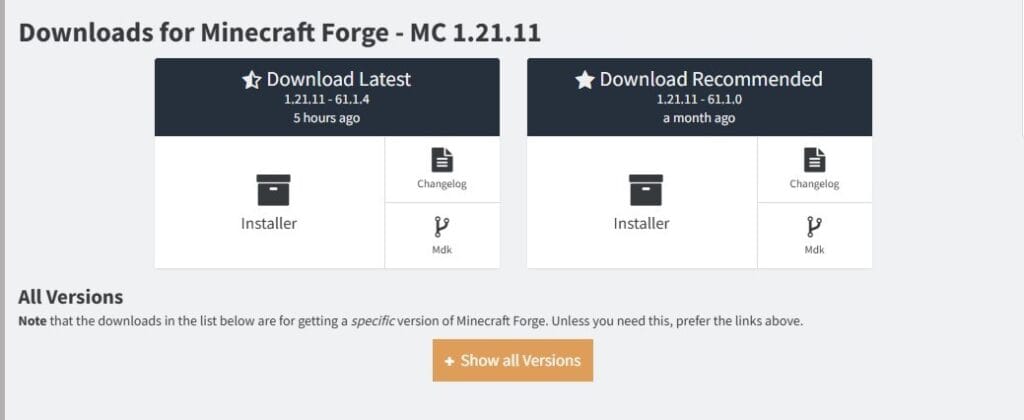
For mods to load and work correctly on your PC, you need to download the latest version of Forge, which is 61.1.4. Here’s the latest Forge version ready for download.
Fabric
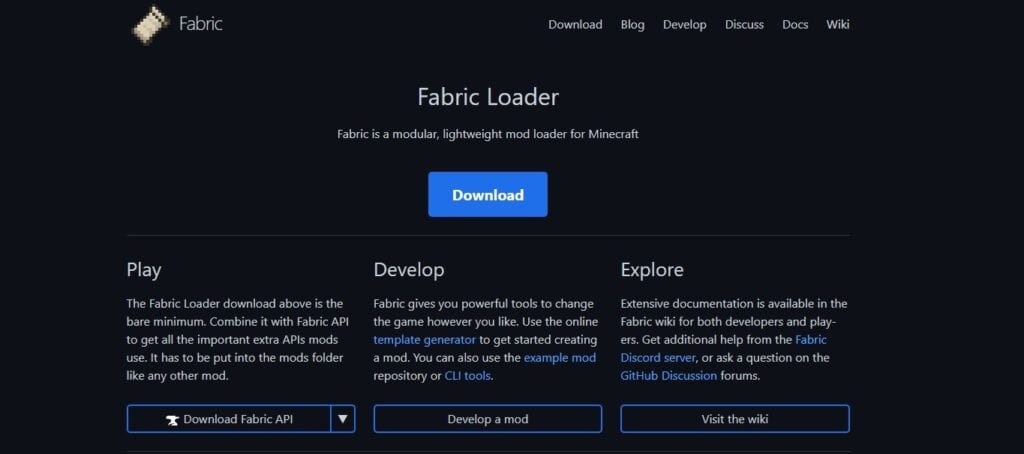
Fabric is a lighter and more modern mod loader designed to be fast and flexible. It updates quickly whenever Minecraft releases a new version, which makes it popular for performance-focused mods.
Fabric is best for:
- Performance mods like Sodium, Lithium, and Phosphor
- Lightweight mod setups
- Players who want quicker compatibility with new Minecraft updates
When downloading a mod, always check whether it requires Forge or Fabric, because mods made for one loader will not work with the other. For example, you can’t use the mod Sodium to improve FPS if you have the Forge loader installed.
Install Java (Required for Minecraft Mods)
Before installing Forge or Fabric, you need Java installed on your computer. Minecraft Java Edition already uses Java, but the Forge installer requires the Java runtime to open .jar files.
If you don’t have Java on your PC, the Forge installer may open in programs like WinRAR or 7-Zip instead of launching the installer.
To install Java:
- Visit the official Java download page:
- Click Download Java.
- Run the installer and follow the setup instructions.
Once Java is installed, you should be able to double-click the Forge .jar installer file, and the Forge installation window will appear. After that, you can continue with the Forge installation steps below.
How to Install Minecraft Mods Using Forge
Here’s how to install Minecraft mods using the Forge loader.
1. Install Minecraft Java Edition
If you haven’t already, download Minecraft Java Edition and launch the game at least once. Running the game once allows Minecraft to generate the required folders on your computer.
2. Download Minecraft Forge
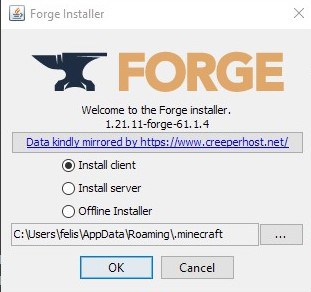
Visit the official Forge website and download the installer that matches the same version of Minecraft you’re using. For instance, if you’re using Minecraft 1.21.11 (the latest version), download the Forge version compatible with it.
Once the file downloads, open the installer, select Install Client, and click OK to begin the installation.
3. Launch Minecraft with Forge
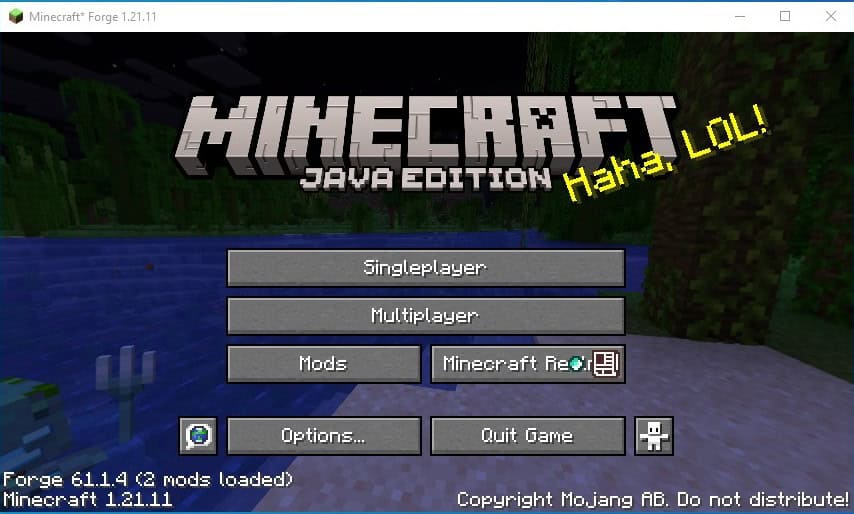
After installing Forger, open the Minecraft Launcher and look for the version selector near the Play button.
Choose the Forge profile and launch the game once. This step allows Minecraft to create the mods folder, which is where all mod files will go.
4. Download Your Mods
Now comes the easy part – download the mods you want from trusted mod sites such as:
- CurseForge
- Modrinth
- Planet Minecraft
Please make sure the mod:
- Matches your Minecraft version
- Is designed for Forge
Carefully follow the download and installation instructions from the creator to ensure your mods load correctly.
5. Move Mods Into the Mods Folder
When you download a Minecraft mod, you typically get a file like:
example-mod-1.20.1.jar
Simply move that .jar file into the mods folder. Do not extract or unzip it.
If you can’t locate your mods folder in your directory, here’s the default location on Windows:
C:\Users\YourName\AppData\Roaming\.minecraft\mods
6. Launch Minecraft
Now start your game via the Forge profile, and once the game loads, your installed mods should appear in the Mods menu, confirming they were installed successfully.
How to Install Minecraft Mods Using Fabric
If the mod you want requires Fabric, the installation process is very similar to Forge. Fabric is a lightweight mod loader that works especially well with performance and quality-of-life mods.
Follow these steps to install Fabric mods on your PC.
1. Download the Fabric Installer
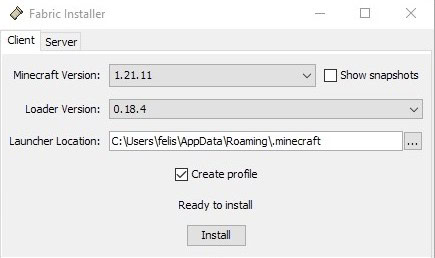
Visit the official Fabric website and download the Fabric Installer. Open the installer and select the Minecraft version you want to use. Make sure it matches the version required by the mods you plan to install.
Click Install to add Fabric to your Minecraft launcher.
2. Launch Minecraft with Fabric
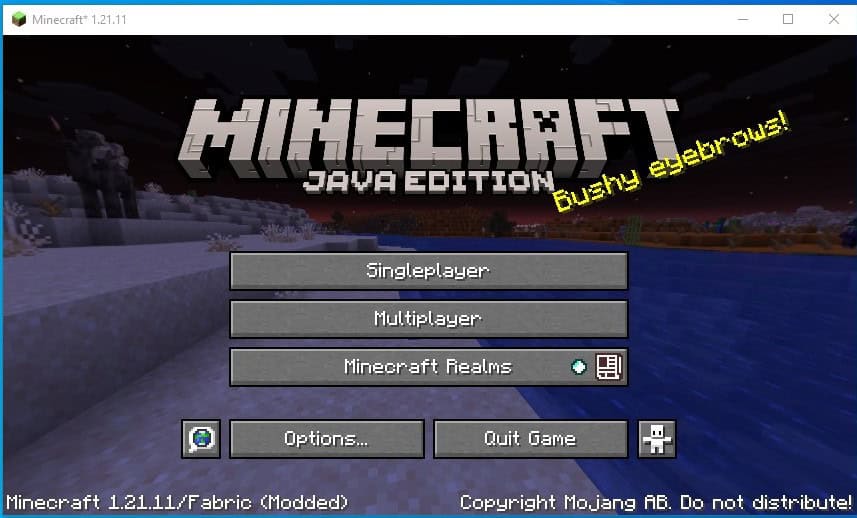
Open the Minecraft Launcher and look for the Fabric Loader profile in the version list.
Launch the game once using this profile. This will create the mods folder if it doesn’t already exist.
3. Install Fabric API
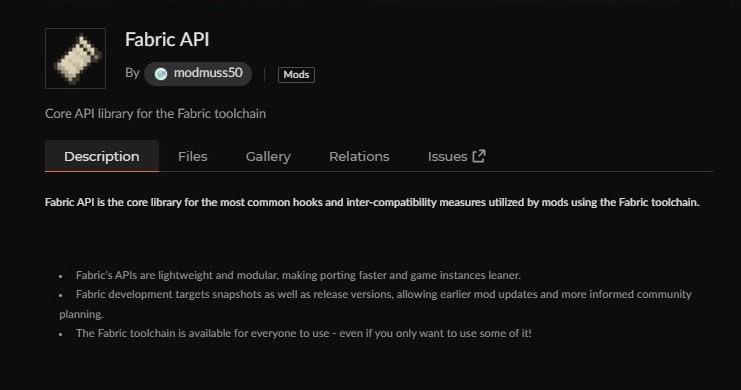
Many Fabric mods require an additional library called Fabric API to function properly. Be sure to download Fabric API and place the .jar file into your mods folder.
4. Download Fabric Mods
Download the Fabric-compatible mods you want from trusted mod sites such as:
- CurseForge
- Modrinth
- Planet Minecraft
Always check that the mod supports Fabric and your Minecraft version to avoid running into compatibility issues.
5. Move Mods Into the Mods Folder
Place the downloaded .jar mod files into your mods folder, usually located inside your .minecraft directory.
6. Launch Minecraft
After downloading all the necessary files, open the Minecraft Launcher, select the Fabric Loader profile, and start the game. Your installed mods should now load automatically when the game starts.
Disclaimer
You can install both Forge and Fabric on the same computer. They appear as separate profiles in the Minecraft Launcher, allowing you to switch between them depending on which mods you want to use. However, mods made for Forge will not work with Fabric, and Fabric mods will not work with Forge.
Where Is the Minecraft Mods Folder?

The mods folder is where all Minecraft mod files are stored. After installing Forge or Fabric and launching the game once, Minecraft will automatically create this folder inside your game directory.
Most mods come as .jar files, and you simply place those files inside the mods folder.
On Windows, the mods folder is usually located here:
C:\Users\YourUsername\AppData\Roaming\.minecraft\mods
If you don’t see the folder, make sure you’ve launched Minecraft with Forge or Fabric at least once, since the folder is created automatically during the first launch.
Quick Way to Open the Minecraft Folder
The fastest way to find your Minecraft folder is:
- Press Windows Key + R
- Type %appdata%
- Open the .minecraft folder
- Locate the mods folder inside
Once you’re there, you can simply drag and drop your mod files into the mods folder.
FAQ on How to Install Minecraft Mods in 2026
Do Minecraft mods work on Bedrock Edition?
No. Most Minecraft mods are designed for Minecraft Java Edition. Bedrock Edition uses a different system for add-ons and doesn’t support Java mods.
Are Minecraft mods safe to download?
Minecraft mods are generally safe when downloaded from trusted websites such as CurseForge, Modrinth, or Planet Minecraft. Avoid downloading mods from unknown websites to reduce the risk of malware.
You can also trust our mod catalog here at MHM. We curate all our mods to ensure they’re safe to install and download.
Can you install multiple Minecraft mods at once?
Yes, you can install multiple mods at the same time as long as they are compatible with each other and designed for the same mod loader, either Forge or Fabric.
Why are my Minecraft mods not showing up?
This usually happens if:
- You’ve not placed the mod in the mods folder
- You’re using the wrong Minecraft version
- You launched the game without Forge or Fabric
- The mod requires additional dependencies like Fabric API
Do Minecraft mods slow down the game?
Some mods can affect performance, especially large gameplay mods. However, performance mods like Sodium or Lithium are designed to improve FPS and optimize the game.
What file type do Minecraft mods use?
Most Minecraft mods are downloaded as .jar files. Do not unzip these files. Simply place the .jar file directly into your Minecraft mods folder.
Do Minecraft mods work after Minecraft updates?
Not always. When Minecraft updates, some mods may stop working until the creators update them to match the new game version.
Conclusion
That’s all there is to it. Once you understand how mod loaders work, installing Minecraft mods becomes a quick and straightforward process. You can choose Forge for larger content-heavy mods or Fabric for lightweight and performance-focused mods. Both loaders make it easy to customize your Minecraft experience.
Just remember to download mods that match your Minecraft version, place the .jar files in the mods folder, and always launch the game using the correct mod loader.
With everything set up, you’re ready to start exploring new gameplay features, improved performance, and completely new ways to experience Minecraft. If you’re looking for great mods to begin with, be sure to check out our Best Minecraft Mods 2026 guide for some of the most popular options available right now.