
How to Use SMAPI in Stardew Valley: Step-by-Step Mod Setup Guide for Beginners
If you want to use mods in Stardew Valley, SMAPI is the first thing you’ll need to download. SMAPI (Stardew Modding API) is the tool that makes most Stardew Valley mods actually work. Without it, popular mods like CJB Cheats Menu, Tractor Mod, and Lookup Anything simply won’t run.
The good news? Setting up and using SMAPI is much easier than it sounds, even if you’re new to playing Stardew Valley. Once it’s installed correctly, SMAPI quietly runs in the background and loads your mods automatically every time you launch the game.
In this guide, you’ll learn exactly how to use SMAPI in Stardew Valley, how to launch it properly, and how to make sure your mods are working without errors.
RELATED POST: Best Stardew Valley Mods (2026) — Must-Have Mods for Every Player
What Is SMAPI in Stardew Valley?
SMAPI (Stardew Modding API) is the tool that allows Stardew Valley to run mods. It works as a mod loader, meaning it launches the game with your installed mods enabled and manages how those mods interact with the game. Without SMAPI, most popular Stardew Valley mods simply won’t function.
Beyond just loading mods, SMAPI also helps protect your game by checking for compatibility issues, flagging outdated mods, and showing detailed error logs when something goes wrong. This makes troubleshooting much easier, especially for beginners who are new to modding.
Once installed, SMAPI runs quietly in the background every time you start Stardew Valley through the SMAPI launcher, automatically loading any mods placed in your Mods folder.
What You Need Before Installing SMAPI
Before installing SMAPI, you first need to meet the following requirements:
- A legitimate copy of Stardew Valley installed
- The game launched at least once (this is important for folder creation)
- Basic access to your game installation folder
- Permission to install files on your computer
- Mods you plan to use (optional for now)
It’s especially important to run Stardew Valley one time before installing SMAPI. This ensures the game generates the necessary folders that SMAPI and your mods will use.
Once you’ve confirmed everything above, you’re ready to download and install SMAPI.
How to Use SMAPI in Stardew Valley (for Windows)
Now, it’s time to download SMAPI on your device. The process for installing SMAPI varies depending on what device you’re playing on. Below, I’ll focus on PC players using Windows. If you use any other devices, here are some installation guides with easy setups:
- macOS
- Linux
- Steam Deck (the handheld PC);
- or Android
Step 1: Download SMAPI
Download the latest version of SMAPI from the official source. Always use the official site to avoid outdated or unsafe files.
Here’s a link to the latest SMAPI Version
- Open your browser and go to smapi.io
- Click Download SMAPI
- Choose the version for your operating system (Windows, Mac, or Linux)
- Wait for the .zip file to finish downloading
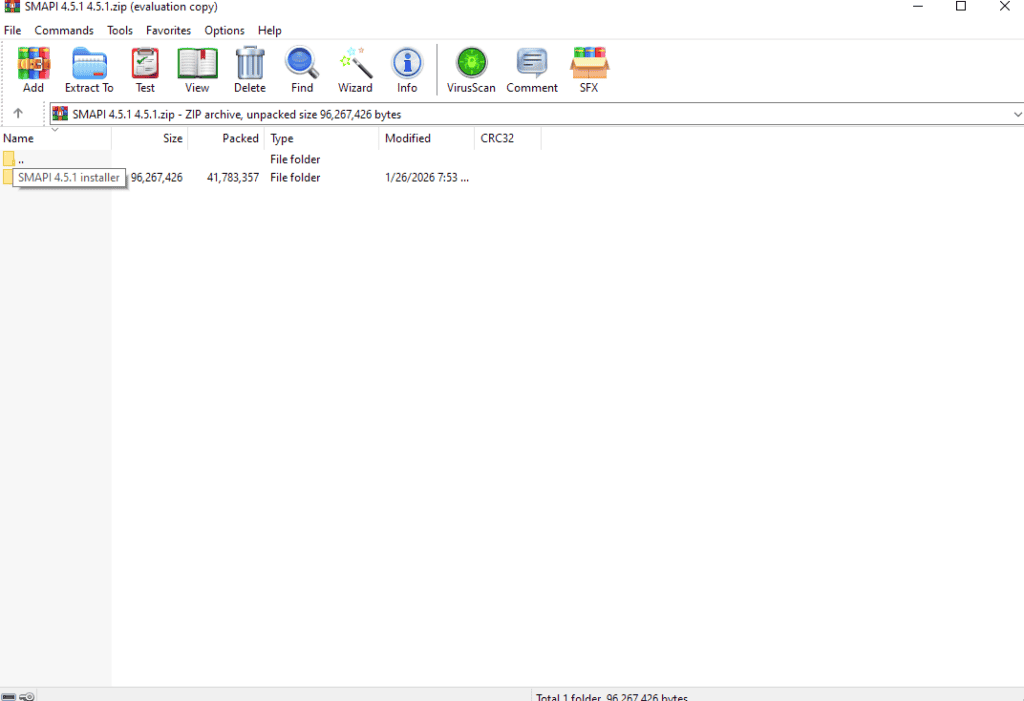
- Extract (unzip) the downloaded file
After extracting, you should see the SMAPI installer folder containing the install files.
Next, you’ll run the installer to connect SMAPI to your Stardew Valley game.
Step 2: Install SMAPI
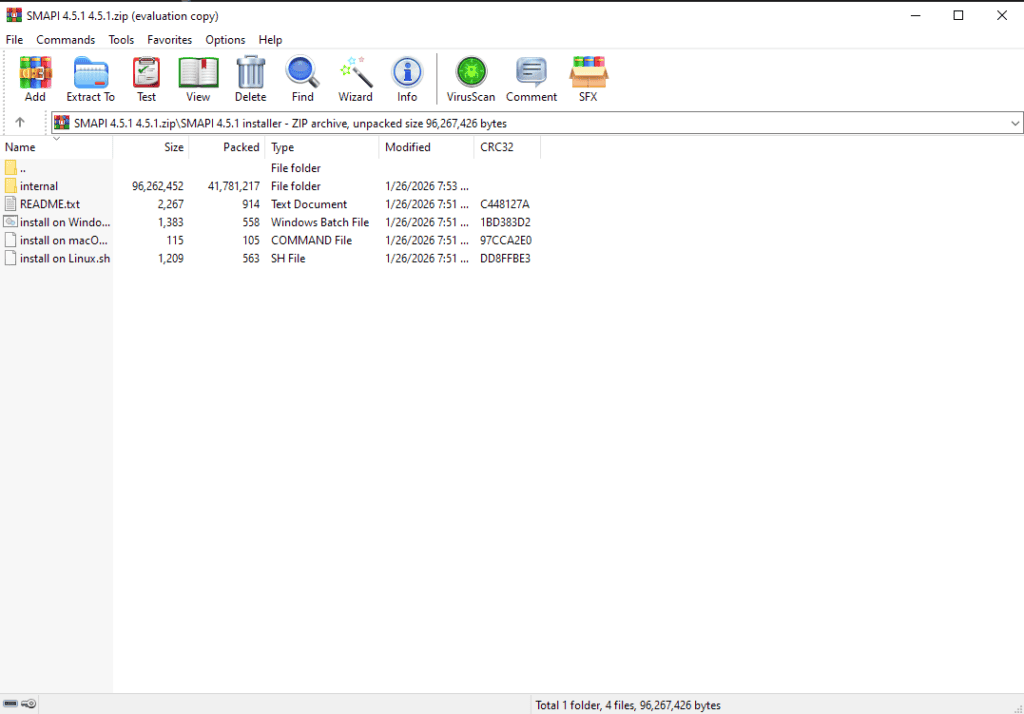
Once you extract the files, installing SMAPI only takes a minute. The installer automatically detects your Stardew Valley folder and sets everything up for you.
- Open the extracted SMAPI installer folder
- Double-click install on Windows.bat (Windows)
• On Mac/Linux, run the appropriate install file - A black command window will appear
- Press 1 on your keyboard to install
- Wait for the installation to complete
When it finishes, SMAPI will confirm that it was installed successfully and will usually create a new launcher for your game.
If you see a success message, you’re ready to launch Stardew Valley through SMAPI.
Step 3: Launch Stardew Valley Through SMAPI
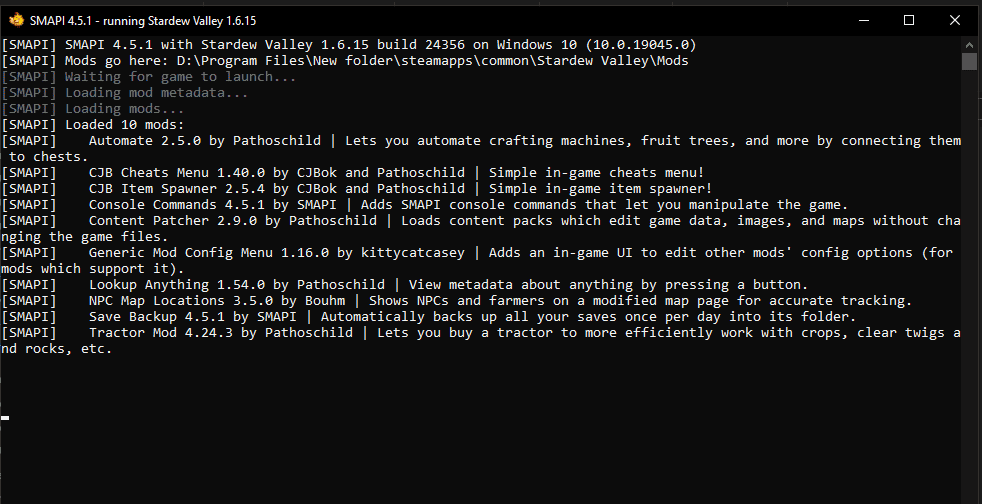
After installing SMAPI, you must launch Stardew Valley through the SMAPI launcher, not the normal game shortcut, for your mods to load. This step is where many beginners slip up.
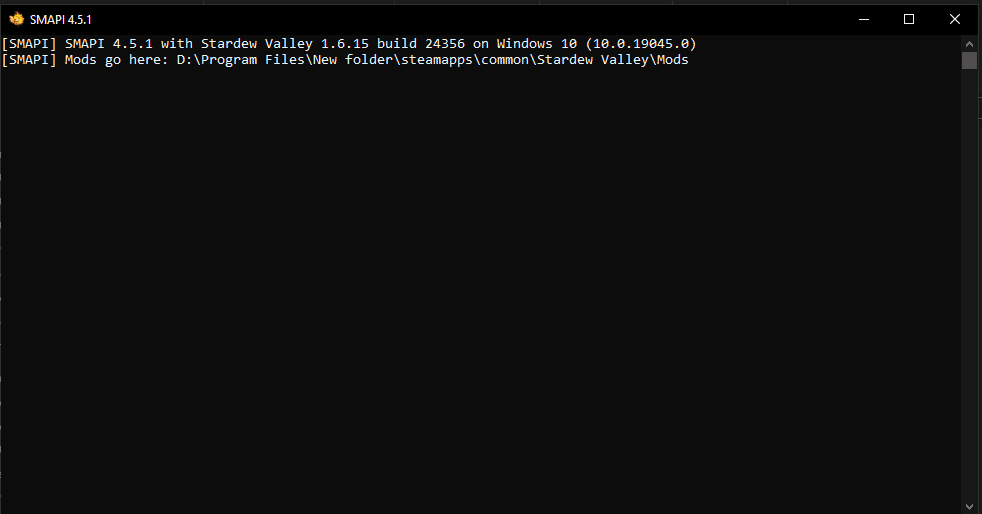
When SMAPI is working correctly, a black console window will open alongside your game and display mod loading messages.
You can launch SMAPI in any of these ways:
Option A: Desktop shortcut (easiest)
- Use the new Stardew Valley shortcut created by SMAPI
- Double-click it to start the game
Option B: Through Steam (recommended for most players)
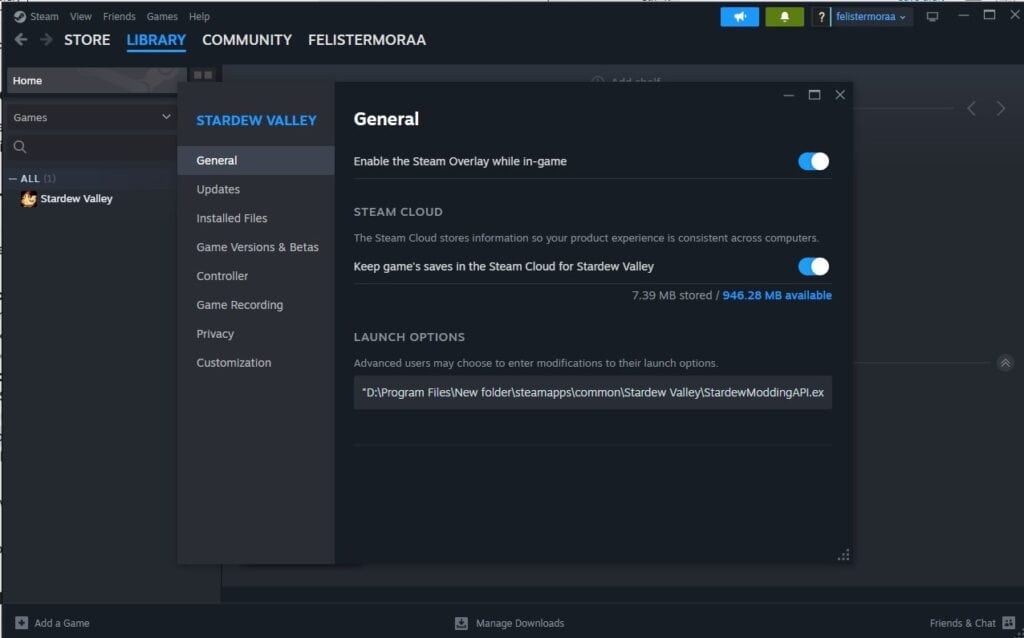
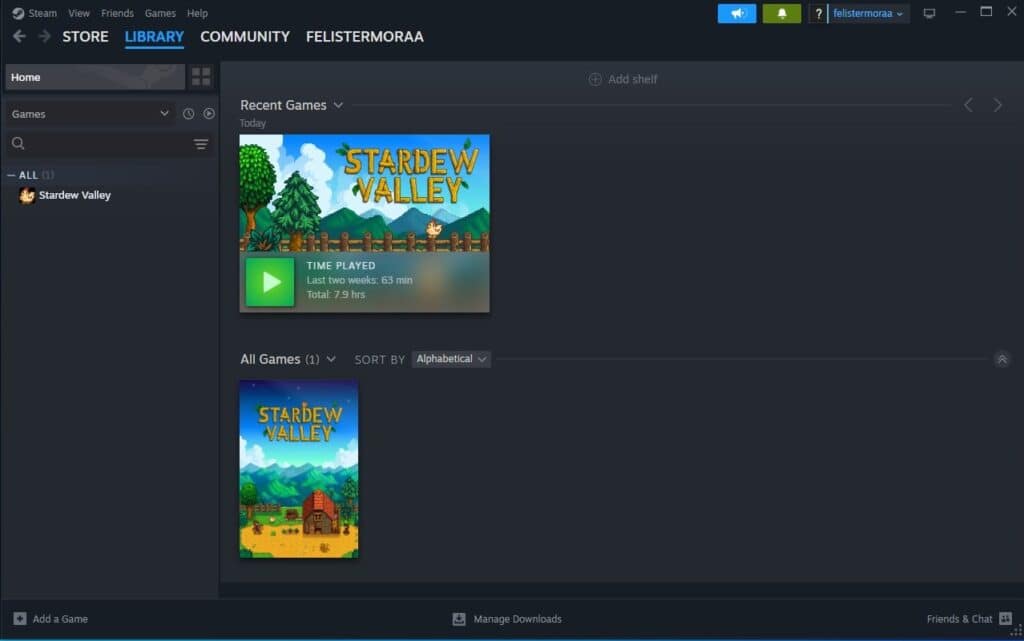
If you play Stardew Valley through Steam, you’ll need to configure Steam so it launches SMAPI instead of the normal game. This only takes a minute, but it’s an important step many players miss.
- Open Steam
- Go to your Library
- Right-click Stardew Valley
- Click Properties
- Find the Launch Options box
- Paste the SMAPI launch path provided during installation. During installation, SMAPI shows you the exact launch command to copy. It usually looks similar to this (Windows example):
“C:\Program Files (x86)\Steam\steamapps\common\Stardew Valley\StardewModdingAPI.exe” %command% - Close the Properties window
From now on, when you press Play in Steam, SMAPI will launch automatically.
Important: Copy the launch command exactly as is, including the launch commands.
Option C: Manual launch
For those who want to launch the game manually, the process is simple:
- Open your Stardew Valley game folder using the following path:
- C:\Program Files (x86)\Steam\steamapps\common\Stardew Valley\StardewModdingAPI.exe
- Double-click StardewModdingAPI.exe or StardewModdingAPI
- The SMAPI console window should appear
- Stardew Valley will launch automatically
I personally use this method because it’s easy and straightforward.
Step 4: Check if SMAPI Works
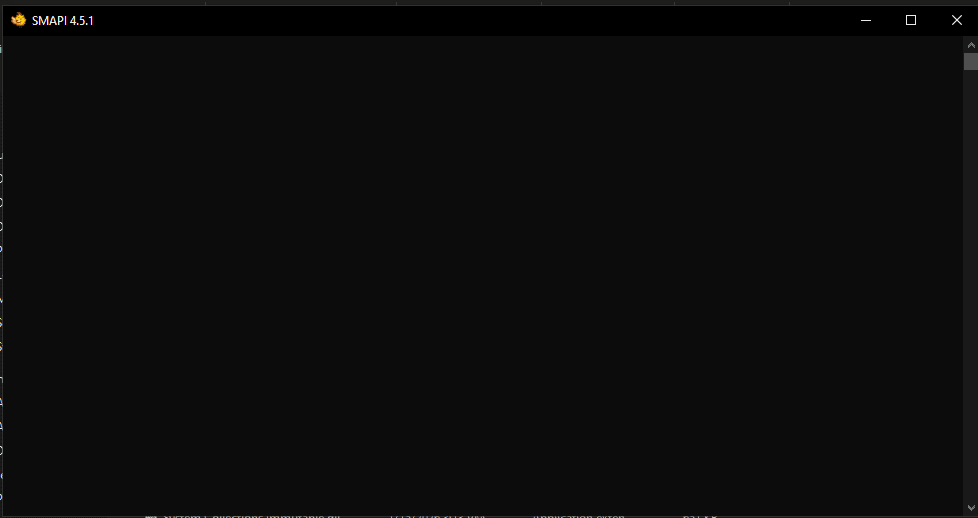
You’ll know SMAPI launched correctly if you see:
- A black SMAPI console window like the one shown above
- Text showing mods being loaded
- No large red error messages
If the game opens normally with no console window, it means SMAPI DID NOT launch, and your mods will not load.
Next, we’ll install your first mod to test that everything is working properly.
Recommended First Mods to Test SMAPI
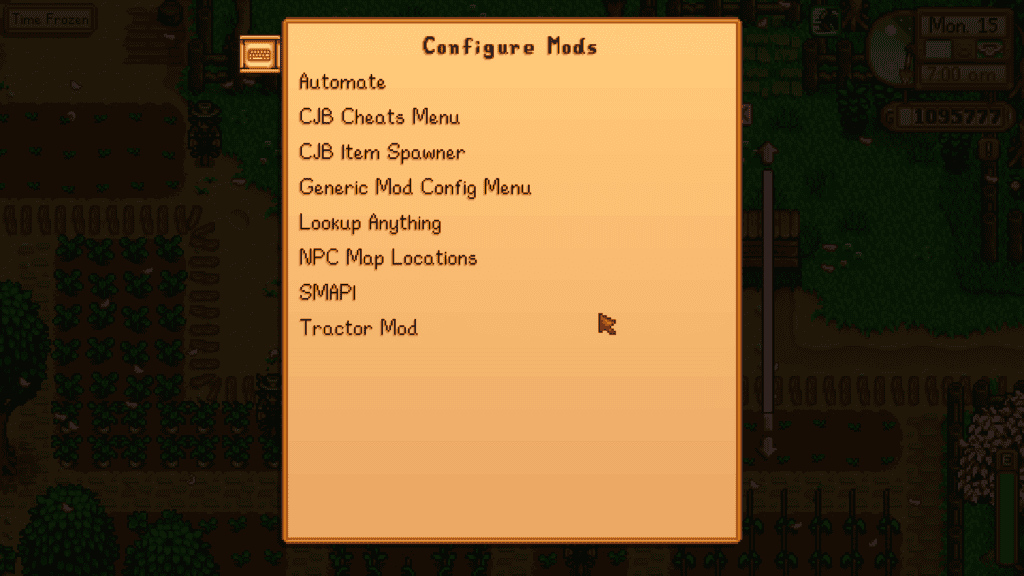
If you want to confirm everything works, try downloading your first mods. I have a detailed guide on the best Stardew Valley mods to download as a beginner, which I highly recommend you check out. But to summarize, they are:
- CJB Cheats Menu
- Lookup Anything
- NPC Map Locations
- Tractor Mod
These are beginner-friendly and easy to verify in-game.
Troubleshooting SMAPI Issues (Quick Fixes That Actually Work)
If SMAPI or your mods aren’t working correctly, don’t panic. Most problems come from a few very common setup mistakes, and you can fix them in minutes:
SMAPI Console Window Not Appearing
If your SMAPI console window isn’t appearing, it means the game is launching without SMAPI. Here’s how to fix this:
- Make sure you’re launching via the SMAPI shortcut or Steam launch options
- Recheck your Steam Launch Options path
- Try launching StardewModdingAPI.exe manually
- Restart Steam after installing SMAPI
Remember, if there’s no black console window, SMAPI is not running.
Mods Not Showing in Game
If you can’t see mods in the options menu in-game, it means SMAPI is running, but your mod isn’t loading. Here’s how to fix this:
- Confirm the mod is inside the Mods folder
- Make sure the mod is fully extracted (not a .zip)
- Check that the mod supports your game version
- Verify the mod is SMAPI-compatible
- Look for red errors in the SMAPI console
“SMAPI Is Outdated” Message
If you receive this message, it means your SMAPI version is older than your game version. Here’s how to fix this:
- Download the latest SMAPI from the official site
- Run the installer again
- Replace the old installation
Keeping SMAPI up to date prevents many mod errors. So always check the official SMAPI site for mod updates and compatibility notes.
Red Error Text in the SMAPI Console
If you get a red error text when you launch SMAPI, it means a mod is broken, missing a requirement, or outdated. To fix this:
- Read the red error carefully (it usually names the problem mod)
- Update the affected mod
- Install any missing required frameworks
- Remove the broken mod temporarily
Pro tip: Yellow text is usually just warnings, and red text is what matters most.
Mods Folder Missing
If your mods folder is missing, it means SMAPI hasn’t created it yet. To fix this:
- Launch the game once through SMAPI
- The Mods folder will generate automatically
- If needed, create a folder named exactly Mods
Game Crashes After Installing Mods
If your game crashes after installing mods, it means:
- You have an outdated mod
- You have conflicting mods
- You have a missing dependency
- You have a corrupted install
To fix this:
- Remove the most recently added mod
- Launch the game again
- Update all mods
- Verify game files in Steam
FAQ: How to Use SMAPI in Stardew Valley
Do I need SMAPI to use Stardew Valley mods?
Yes. Most Stardew Valley mods require SMAPI to run. Without it, most popular mods, such as CJB Cheats Menu, Lookup Anything, and Tractor Mod, will not work.
Is SMAPI safe to use?
Yes, it is. SMAPI is widely trusted in the Stardew Valley modding community. It doesn’t modify your original game files and includes error checking to help protect your save and mods.
Why is my SMAPI console window not appearing?
This usually means the game is launching normally rather than via SMAPI. Double-check your Steam Launch Options or make sure you’re opening StardewModdingAPI.exe or the SMAPI desktop shortcut.
Where is the Stardew Valley Mods folder located?
On Windows (Steam default), the Mods folder is typically found here:
C:\Program Files (x86)\Steam\steamapps\common\Stardew Valley\Mods
If the folder is missing, launch the game once through SMAPI, and it will be created automatically.
Do I need to unzip mods before installing them?
Yes. Always extract the mod folder before placing it into your Mods folder. SMAPI cannot load mods that are still in .zip or .rar format.
Why are my mods showing red errors in SMAPI?
Red errors usually mean a mod is outdated, missing a required framework, or incompatible with your game version. Update the mod and install any listed dependencies.
How do I update SMAPI?
Download the latest version from the official SMAPI website and run the installer again. It will automatically update your existing installation.
Can I use SMAPI with Steam?
Yes. After installing SMAPI, add the provided launch path to Steam’s Launch Options so the game starts through SMAPI when you press Play.
Does SMAPI work on Mac and Linux?
Yes. SMAPI supports Windows, macOS, and Linux. The installation steps are similar, but you’ll run the platform-specific installer included in the download.
Does SMAPI work on Android?
Not reliably. SMAPI for Android is unofficial and often outdated. Many modern mods will not work properly on mobile, especially after game updates.
Will SMAPI slow down my game?
SMAPI itself has minimal performance impact. However, using many heavy mods at once can affect load times and in-game performance.
What should I do if SMAPI still isn’t working?
Check the SMAPI console for red errors, confirm your mods are extracted correctly, update both SMAPI and your mods, and verify that you’re launching the game through SMAPI.
Conclusion
SMAPI is the foundation of Stardew Valley modding, and once you set it up correctly, the entire process becomes surprisingly simple. After your first successful install, most mods only require you to drop a folder into your Mods directory and launch the game through SMAPI.
If something doesn’t work right away, don’t stress. Nearly every issue comes down to launching the wrong game file, forgetting to unzip a mod, or using an outdated download. With the troubleshooting tips in this guide, you should be able to fix most problems in just a few minutes.
Now that SMAPI is up and running, you’re ready to start expanding your game with quality-of-life upgrades, visual improvements, and powerful gameplay mods.