
Stardew Valley Mods Not Working? How to Fix Them (Complete Guide)
Are your Stardew Valley mods not working? If so, you’re not alone.
Nothing ruins a cozy farming session faster than launching Stardew Valley and realizing your mods have suddenly stopped working.
Luckily, this issue is extremely common, especially if you use a lot of mods. Maybe your game updated, SMAPI isn’t loading correctly, or your mods simply refuse to appear in-game.
The good news is that most Stardew Valley mod problems are surprisingly easy to fix once you know where to look.
In this guide, I’ll walk through the most common reasons Stardew Valley mods stop working and show you exactly how to fix them so you can get your modded farm running again.
RELATED POST: Best Stardew Valley Mods (2026) — Must-Have Mods for Every Player
Common Reasons Stardew Valley Mods Stop Working
Before troubleshooting, it helps to understand why mods fail in the first place. Most problems stem from outdated files, missing frameworks, or incorrect installation.
Here’s a quick summary of the most common causes of Stardew Valley mods not working:
| Issue | What It Means |
|---|---|
| Outdated SMAPI | Mods rely on SMAPI to run. If it’s outdated, mods may fail to load. |
| Missing Framework Mods | Some mods require frameworks, like Content Patcher or Json Assets. |
| Incorrect Mod Installation | If you place mods in the wrong folder or install them incorrectly, they won’t appear in-game. |
| Outdated Mods | Game updates can break older mods that haven’t been updated by their creators. |
| Mod Conflicts | Two mods trying to change the same game files can cause errors. |
| Launching Without SMAPI | Mods only load if the game is launched through SMAPI. |
Once you understand the causes, it’s easier to fix the issue and get back to modding your game.
How to Fix Stardew Valley Mods Not Working
If your mods aren’t loading in Stardew Valley, follow these steps to identify and solve the problem.
1. Update SMAPI
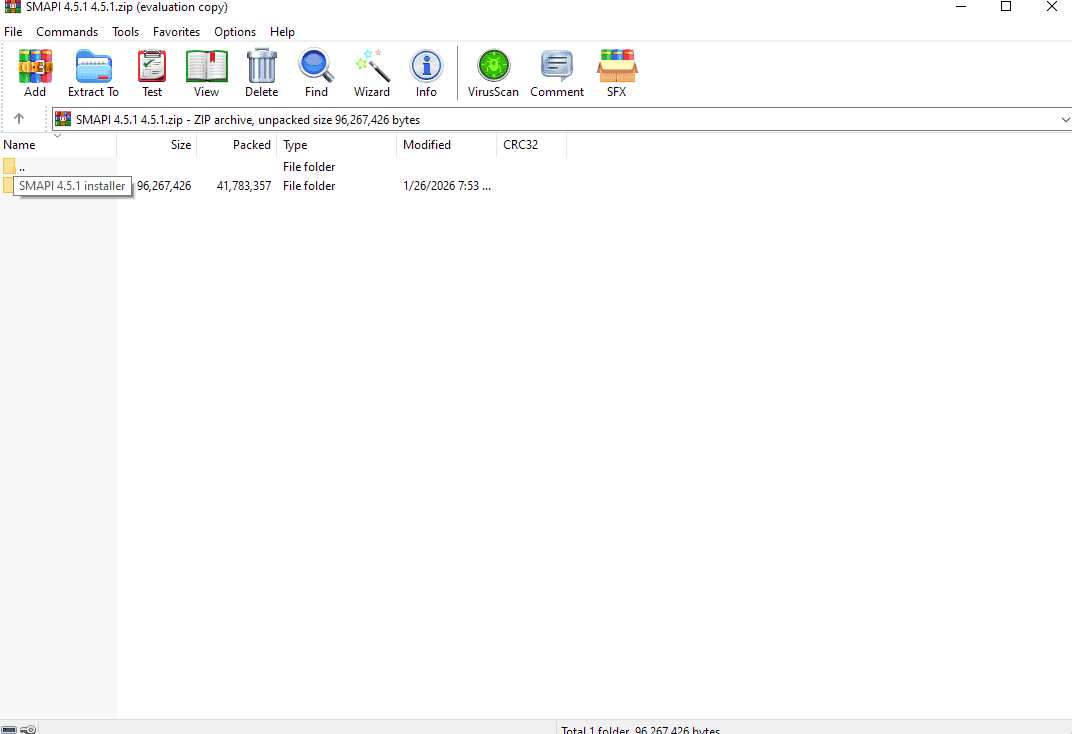
Most Stardew Valley mods require SMAPI to run. So, if SMAPI is outdated, your mods will likely stop working after a game update.
How to fix it
- Download the latest SMAPI version. (the latest version is 4.5.1)
- Run the installer.
- Launch the game using StardewModdingAPI.exe.
When SMAPI loads properly, you’ll see a console window appear before the game starts.
RELATED POST: How to Use SMAPI in Stardew Valley: Step-by-Step Mod Setup Guide for Beginners
2. Update Your Mods
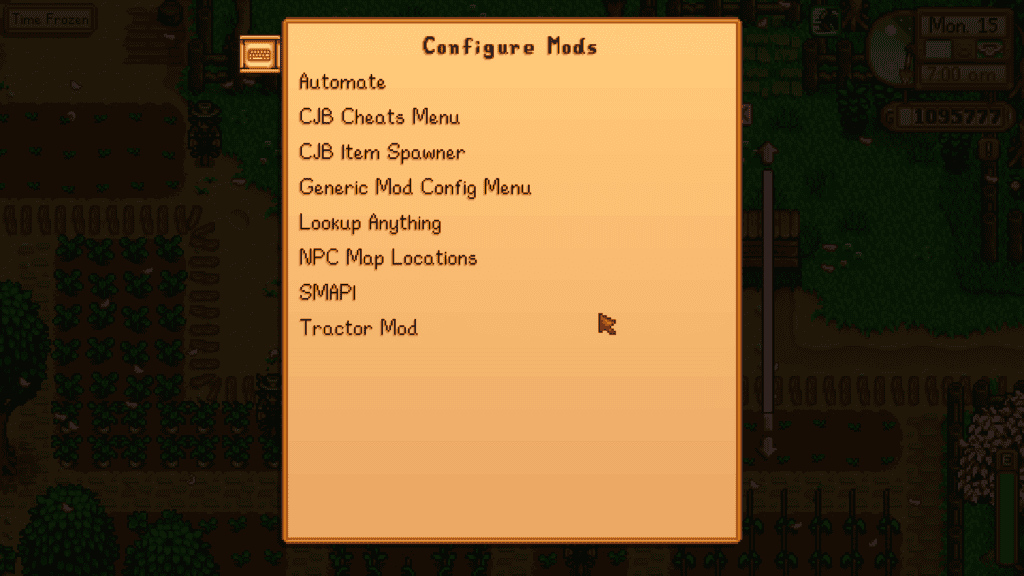
Mods often break after game updates, since creators need time to update them for the latest version of Stardew Valley. If a mod suddenly stops working, visit its download page and check whether a newer version has been released.
If an update is available, download the latest version and replace the old mod folder in your Mods directory.
If there’s no update or information from the creator yet, it’s best to temporarily remove the mod. Keeping outdated mods installed can cause errors, crashes, or prevent other mods from loading properly.
3. Install Required Framework Mods
Many mods rely on framework mods to function properly. These frameworks act as support systems that allow other mods to add content or change game behavior in Stardew Valley.
If a required framework is missing, the mod will fail to load or trigger an error in the SMAPI console.
Check the mod’s download page and look for a “Requirements” or “Dependencies” section. If the mod lists required frameworks, download and install them before launching the game.
Some of the most common framework mods include:
- Content Patcher
- Json Assets
- SpaceCore
- Producer Framework Mod
If these are missing, the mod will not load.
4. Check Your Mods Folder
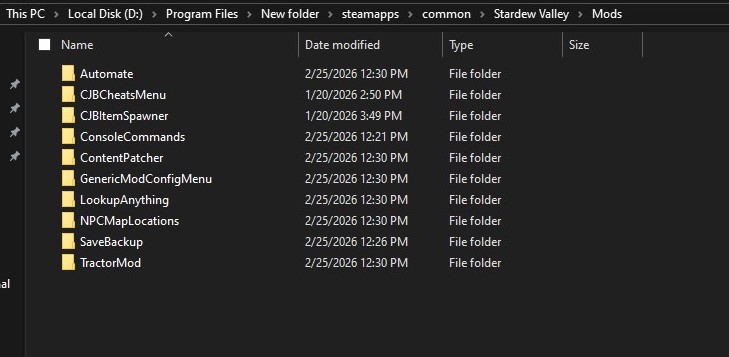
You must place mods in the correct directory for them to load properly in Stardew Valley. If you install a mod in the wrong location, SMAPI won’t detect it, and it won’t appear in-game.
The correct installation path for Stardew Valley mods is:
Windows (Steam)
C:\Program Files (x86)\Steam\steamapps\common\Stardew Valley\Mods
Windows (Xbox / Game Pass)
C:\XboxGames\Stardew Valley\Content\Mods
macOS
/Users/YourUsername/Library/Application Support/Steam/steamapps/common/Stardew Valley/Contents/MacOS/Mods
Linux
~/.steam/steam/steamapps/common/Stardew Valley/Mods
Before loading your game, open your Stardew Valley installation folder and make sure all mods are placed inside the Mods folder. Each mod should also be in its own folder, not mixed with other files.
RELATED POST: How to Install Stardew Valley Mods (SMAPI Guide for Beginners)
5. Check the SMAPI Error Log
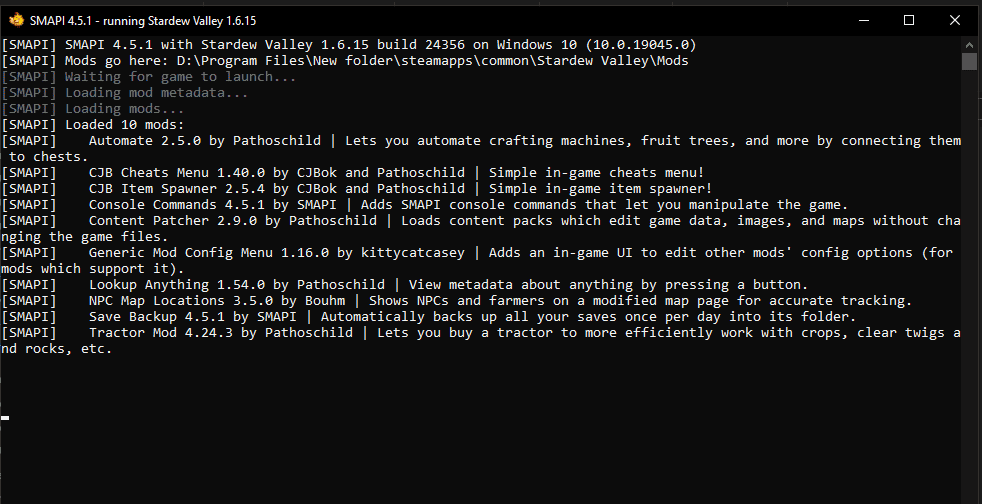
If you’re not sure why a mod isn’t working, the best place to look is the SMAPI error log. The log records everything that happens when Stardew Valley launches, including which mods load successfully and which ones fail.
When running the game through SMAPI, a console window appears before the game starts. This window shows messages about missing dependencies, outdated mods, and loading errors.
If a mod fails to load, SMAPI usually explains why. It might say that a framework mod is missing, the mod is outdated, or another mod is causing a conflict.
Read the SMAPI log to quickly diagnose mod problems because it points directly to the source of the issue.
Here’s how to do this:
Step 1: Launch the Game Through SMAPI
Start the game using SMAPI instead of the normal game launcher. When the game starts, a black console window appears. This window displays information about all loaded mods.
Step 2: Look for Error Messages
While the game loads, the SMAPI console will display different types of messages. Pay attention to:
- Red text → Errors that prevent a mod from loading
- Yellow text → Warnings or potential issues
- White text → Normal loading messages
Most of the time, the error message clearly states the problem, such as a missing framework or an outdated mod.
Step 3: Upload the Log to the SMAPI Log Parser
If the console messages are confusing, and you still can’t figure out why your Stardew Valley mods are not working, use the SMAPI Log Parser to analyze them.
The SMAPI Log Parser is a troubleshooting tool used by Stardew Valley modders to analyze the error logs generated by SMAPI. When you launch Stardew Valley through SMAPI, the game creates a log file that records everything that happens during startup. This includes which mods loaded successfully, which ones failed, and any errors or warnings that occurred.
The problem is that these log files can be long and difficult to read. Luckily, the SMAPI Log Parser solves this by turning the log into a clear, easy-to-read report.
Here’s where you can find the log file on each platform:
Here are the common locations:
Windows
%appdata%\StardewValley\ErrorLogs
macOS
~/Library/Application Support/StardewValley/ErrorLogs
Linux
~/.config/StardewValley/ErrorLogs
Inside the ErrorLogs folder, you’ll find a file called something like:
SMAPI-latest.txt
Upload this log file to the parser tool to highlight:
- Broken mods
- Missing dependencies
- Mods that need updates
This makes troubleshooting much easier, especially if you’re running a large mod list.
6. Remove Conflicting Mods
Sometimes two mods try to modify the same files or game systems, which can cause one or both mods to stop working in Stardew Valley. These types of conflicts are fairly common when using multiple gameplay or visual mods together.
If you suspect a conflict, try removing the most recently installed mods and launch the game again through SMAPI. If the game loads normally, one of the removed mods was likely the cause of the issue.
Another useful approach is to add your mods back one at a time while testing the game between each launch. This makes it easier to identify exactly which mod is conflicting with the others.
Once you find the problematic mod, you can either update it, check if it requires additional frameworks, or replace it with a compatible alternative.
Also, when downloading mods, don’t download two mods that offer the same function, e.g., two visual mods. This is because they likely override the same files.
FAQ on Stardew Valley Mods Not Working
Why are my Stardew Valley mods not showing up?
If your Stardew Valley mods aren’t showing up, it could be because the game isn’t launched through SMAPI, the mod is installed incorrectly, or a required framework mod is missing. Always check your Mods folder and confirm SMAPI loads before the game starts.
Why did my Stardew Valley mods stop working after an update?
Game updates for Stardew Valley can break older mods. When this happens, mod creators need to update their files so they work with the latest version of the game. Be sure to update both SMAPI and your installed mods to resolve the issue.
How do I know if a Stardew Valley mod is installed correctly?
Open the Mods folder and make sure each mod has its own folder containing a manifest.json file. This file tells SMAPI how to load the mod. If it’s missing or buried inside extra folders, the mod won’t load.
Can two Stardew Valley mods conflict with each other?
Yes. Mods that edit the same game assets, buildings, maps, or gameplay systems can conflict with each other. When this happens, one mod may override the other or cause errors during loading.
Can too many mods break Stardew Valley?
Using a large number of mods can increase the chances of conflicts, outdated files, or missing dependencies. While the game can handle many mods, it’s important to keep them updated and check for compatibility.
Do I need to update SMAPI when Stardew Valley updates?
Yes. After a major game update, you should always check for a new version of SMAPI, since older versions may not work with the latest game patch.
Do Stardew Valley mods disable achievements?
No. Mods used with SMAPI do not disable achievements. You can still unlock achievements normally while playing a modded game.
Conclusion
Mods add incredible depth to Stardew Valley, but like any modded game, occasional issues are inevitable. Whether it’s an outdated mod, a missing framework, or an incorrect installation, most problems are easy to resolve once you know where to look.
Remember to update SMAPI, check your Mods folder, review the SMAPI error log, and install required dependencies. These fixes will help you quickly identify and resolve the most common mod issues.
Once everything is working properly again, you’ll be able to return to your farm with all your favorite mods running smoothly.