

How to Download Sims 4 House: A Simple Step-by-Step Guide for 2025

Building a house from scratch in The Sims 4 can be time-consuming and, let’s be honest, a little exhausting. I’ve spent hours perfecting layouts only to realize I prefer using ready-made homes instead, and they’ve completely changed how I play.
If you feel the same way, this guide dives deep into how to download Sims 4 house files and install them in your game. We’ll go over everything you need to know about getting houses from the Gallery, installing Tray files from creators, safely using custom content (CC), and fixing common issues like missing furniture or invisible objects.
By the end, you’ll know exactly how to download, install, and enjoy beautifully designed homes in just a few minutes.
Before we begin, you can also explore my collections of Best Sims 4 Haunted House Downloads, Best Sims 4 Autumn Houses, and Sims 4 Family House Designs for extra inspiration.
Also, I’ve included a FAQ section that answers some of your most commonly asked questions about Sims 4 house downloads.
Looking for the perfect CC for your Sims?
Try our Free Sims 4 Mod & CC Finder to discover thousands of mods instantly. Search by category, creator, or style to find exactly what you need!
What You Need Before Downloading Sims 4 Houses
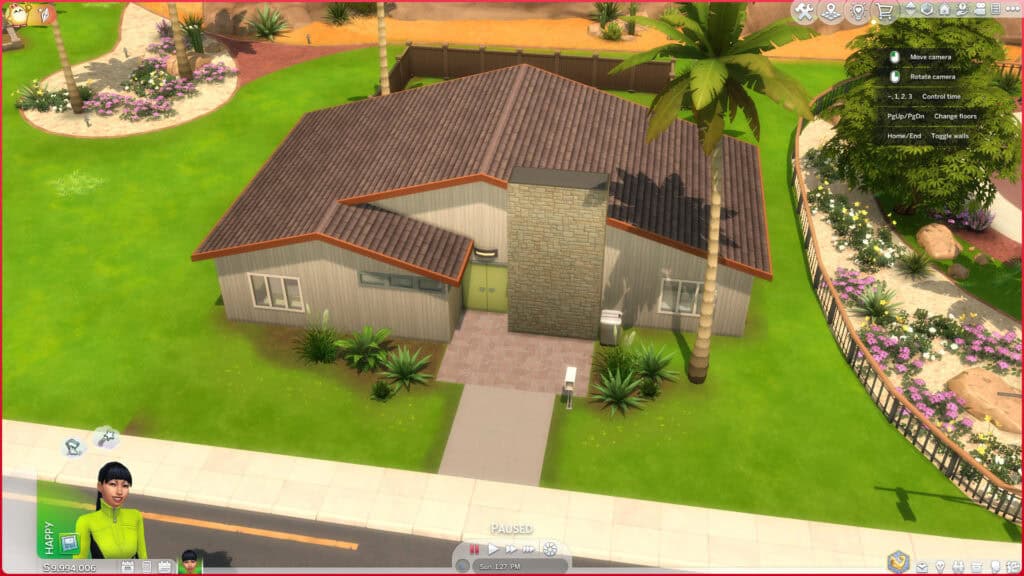
Before adding any new houses to your game, there are a few things you’ll want to have in place. These small steps ensure that your downloaded builds show up correctly and function without missing items or errors.
1. Updated Game Version
Always make sure your Sims 4 game is fully updated before installing new houses. I know many players hesitate to update because it often leads to temporary bugs or mod issues, but keeping your game current is essential. Some houses are created using the latest expansion packs or build tools, and outdated versions can cause lots to appear broken or not show up at all.
If you’ve recently updated and noticed new problems in your game, check out my guide on Sims 4 Broken After Update for common fixes.
2. Mods and Tray Folders Ready
Before downloading any Sims 4 house, make sure your game folders are properly set up. You’ll mainly work with two:
- The Mods folder stores all your custom content, such as furniture, décor, and clutter used inside CC houses. You must add CC files to your mods folder for them to be available in the Sims 4.
- The Tray folder stores downloaded houses and lot files, including .trayitem, .blueprint, and .bpi.
You can find both in your Documents under Electronic Arts > The Sims 4.
3. CC vs. No-CC Builds
You’ve probably noticed creators labeling their houses as “CC” (custom content) or “No-CC.” The difference is simple:
- CC houses use external objects, such as furniture, décor, or clutter, created by other modders
- No-CC builds rely only on official EA content.
It’s important to decide which type you prefer before downloading. CC houses often look more realistic and detailed, but may require extra installation steps.
Many creators include a shopping list or links to the required CC used in their builds. Be sure to download and install all of these additional files. Otherwise, certain items might not appear, leaving your house incomplete or looking empty.
4. Extraction Software
Most creators compress their builds into ZIP or RAR files. Install a free extraction tool like WinRAR or 7-Zip so you can open these archives and move the files into your game folders.
5. Optional Tools for Better Organization
If you plan to download multiple houses, tools like Sims 4 Tray Importer help identify missing CC and organize your builds more efficiently. It’s also useful for checking lot details before installing them.
I have a separate guide on How to Install and Use Sims 4 Tray Importer for both beginners and advanced players.
Finding and Downloading Sims 4 Houses
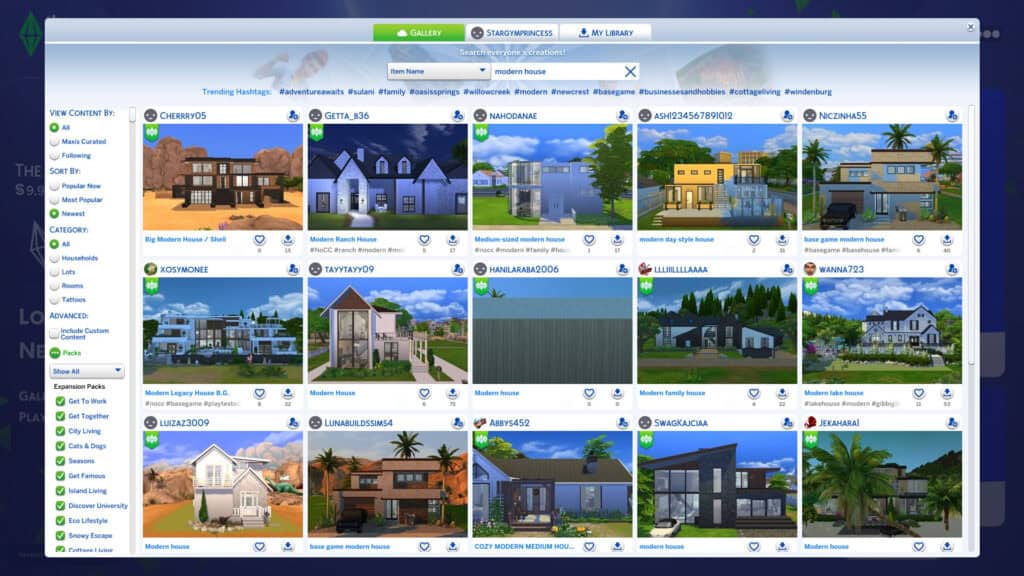
Now that you’ve prepared your game folders and updated everything, it’s time to actually find and download your dream home. There are two main ways to add new houses to The Sims 4 account – through the in-game Gallery or from external sites, like The Sims Resource, where creators share their Tray files and custom builds.
Both options give you access to thousands of detailed homes designed by talented builders. The Gallery is fast and convenient, letting you install houses directly into your game with a single click, while external sites often offer unique, CC-filled builds you won’t find anywhere else.
Below, we’ll cover both methods step by step so you can confidently download, install, and enjoy beautiful Sims 4 houses in just a few minutes.
How to Download Sims 4 House From The Gallery
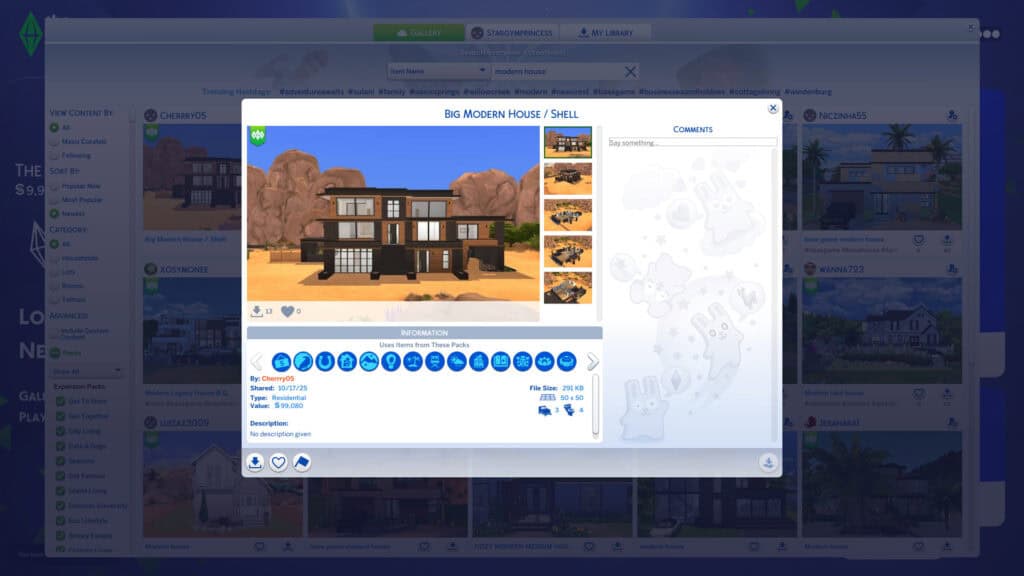
Note: Houses downloaded from the Gallery may have items removed if the player does not own the expansion packs used for those items.
The Sims 4 Gallery is the easiest and safest place to find new houses. Every player has access to it from within the game, and you can browse thousands of lots uploaded by creators around the world. Here’s how to do it step by step:
Step 1: Open the Gallery
Launch The Sims 4 and click the Gallery icon in the top-right corner (or press F4 on your keyboard). From there, you can browse homes, rooms, and entire households shared by other players.
Step 2: Search for Houses
Use the search bar to find specific homes. You can type in:
- Keywords like “beach house,” “modern villa,” or “family home.”
- EA IDs if you know the creator’s username.
- Hashtags such as #modernbuild or #farmhouse.
Step 3: Enable Custom Content (CC)
If you’re looking for builds that use mods or CC, make sure to check the box labeled Include Custom Content. Without this, CC houses won’t appear in your results.
Step 4: Save and Place the Lot
Once you find a house you love, click Place Lot and choose where to put it in your world. You can replace an existing lot or choose an empty one. Remember, when placing a house or lot, you can’t place anything bigger than your current lot size. So, ensure the lot size matches the creator’s specifications.
To save a household or lot to your My Library for later use, click the download arrow button. This allows you to access the build anytime without searching for it again in the Gallery.
Keep in mind that you can only place a household from the Gallery while in Live Mode, not Build Mode. For houses or lots, you’ll need to be in Build Mode on the chosen plot before placing them.
Additionally, you can choose between a furnished or unfurnished lot when placing a lot. I personally prefer furnished downloads because they save me the time required to decorate. But, if you’re feeling creative, go for unfurnished options as they provide an empty structure you can decorate yourself.
Step 5: Adjust Game Filters
If the house doesn’t appear in your library, check your filters under My Library. Enable “Include Custom Content” and “Maxis Uncurated” so all builds become visible.
The Gallery is great for quick, hassle-free installations. There are no extra downloads required, and you don’t have to visit a hundred websites to find what you need.
However, some of the most detailed and unique builds come from creators who share their work outside the Gallery, and that’s where Tray files come in.
How to Download Sims 4 House from External Sites (Tray Files)
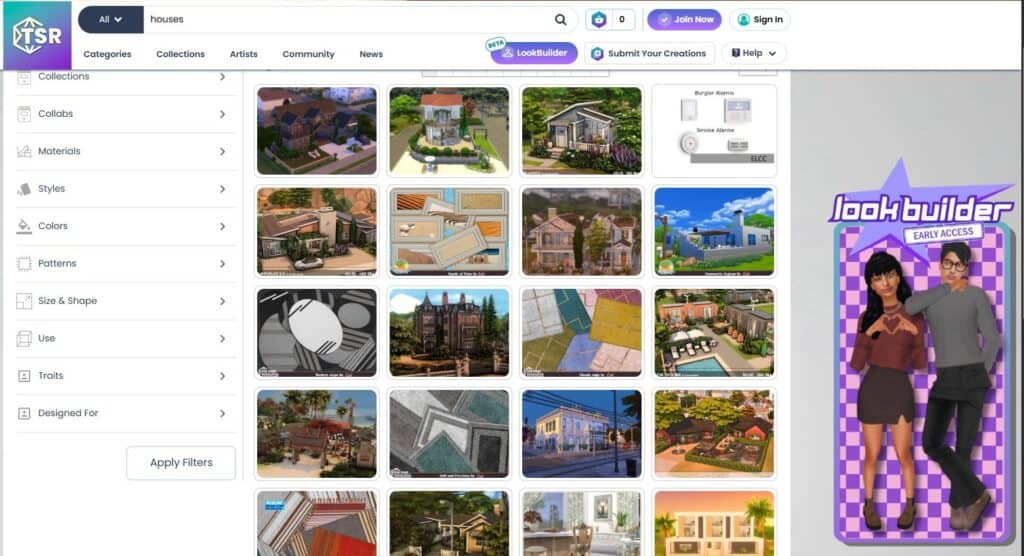
While the Gallery is convenient, many talented creators share their houses on external sites like Patreon, Tumblr, or The Sims Resource. These builds often include unique architecture, detailed interiors, and exclusive custom content you won’t find in the Gallery.
I recommend getting these if you’re looking for something custom, e.g., a house designed for multiple families or rental purposes.
And, installing them is simple once you understand how Tray files work.
Step 1: Download the House Files
To find and download houses, search for “Sims 4 cc houses download free” on your browser or Pinterest. You’ll come across plenty of options, including No CC builds that use only EA items and CC builds filled with custom furniture and décor.
CurseForge, The Sims Resource (TSR), and Mod The Sims (MTS) are popular websites for downloading custom content for The Sims 4. However, here at MHM, we also feature a wide selection of Sims 4 House Downloads, from modern and rustic homes to beach villas, tiny houses, and even Halloween builds. Each post includes direct download links and creator credits for easy installation.
To make things easier for you, I’ve categorized each Sims 4 house download according to its design and purpose. There are houses designed for large families with multiple bedrooms and bathrooms. You’ll find these in my roundup of Sims 4 Family House. Others are ideal for singles or couples, such as the cozy options featured in Sims 4 Tiny Houses.
Many house designs also include outdoor features such as pools and barbecue areas. These features let your Sims entertain guests or relax in a beautifully styled backyard.
Additionally, some designs are built on specific lot sizes, such as 30×20 or 50×50. Choose one that fits your preferred neighborhood and the space you want to work with.
Also, created houses can be fully furnished or unfurnished, depending on the design. Once you find a house you like, download the ZIP or RAR file from the creator’s post.
Helpful Tip: Always download from trusted sources to avoid broken files or malware.
Step 2: Extract the Files
Once you’ve downloaded the house file, you’ll usually receive it in a .ZIP or .RAR format. These are compressed folders that you must extract before the game can read them. To do this, you’ll need a free tool such as WinRAR, 7-Zip, or The Unarchiver (for Mac users).
Right-click the downloaded file and select Extract Here or Extract to [Folder Name]. Inside, you’ll typically find several files ending in .trayitem, .blueprint, and .bpi. These are the essential Sims 4 Tray files that define the lot’s structure and layout.
Some creators may also include a text file listing the required custom content (CC) used in the build. Keep this file for reference, as you’ll need it later when installing CC furniture or décor.
After extracting, make sure all the Tray files are clearly visible and not hidden within subfolders. If you see another folder named something like House Files or Tray, open it and confirm the actual files are inside. These are the ones you’ll move to your game directory next.
Step 3: Move Files to the Tray Folder
Copy all extracted files and paste them into your Tray folder located at:
Documents > Electronic Arts > The Sims 4 > Tray
Do not create subfolders inside the Tray folder, as the game won’t recognize them. Place the files directly inside.
If you already have other downloaded builds, don’t worry about mixing them up. The game automatically sorts all houses and rooms in your Library, even if the Tray folder contains multiple builds.
Step 4: Install Required CC (If Applicable)
If the creator’s post mentions that the build uses custom content, download all the linked .package files and place them in your Mods folder. Without these, your house may appear empty or with missing furniture.
Step 5: Launch the Game and Find the House
Open The Sims 4 and go to the Gallery. Under My Library, make sure Include Custom Content is checked. The new house should now appear in your library, ready to be placed in any world.
Downloading houses from external sites takes a few extra steps, but it gives you access to some of the most creative and realistic builds the community has to offer.
Installing Custom Content (CC) for Sims 4 Houses
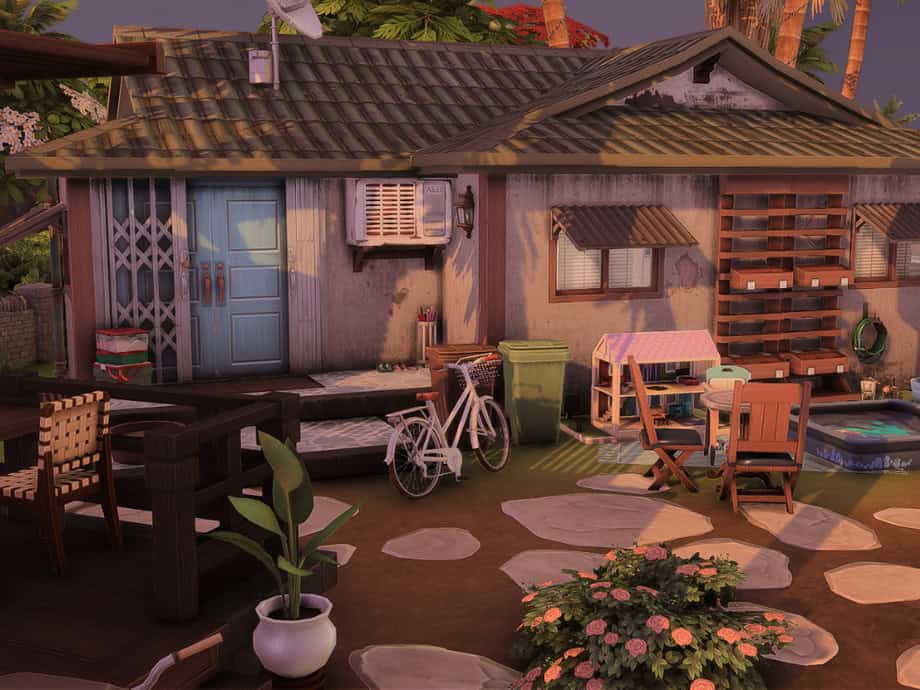
If the house you’ve downloaded includes custom content, you’ll need to install those files separately. Without them, parts of the house, like furniture, clutter, or wallpaper, might not appear in-game, leaving your build incomplete.
Step 1: Locate the CC Files
Most creators include a list of required CC along with the Tray files. These are usually linked in the description or provided as separate downloads. The files will end in .package format, which is how The Sims 4 recognizes custom content.
Step 2: Move CC Files to the Mods Folder
Once downloaded, place all .package files inside your Mods folder located at:
Documents > Electronic Arts > The Sims 4 > Mods
Avoid creating subfolders that are too deep (for example, Mods > Houses > Furniture > Sets), since The Sims 4 sometimes fails to read CC buried under multiple layers.
Step 3: Enable Mods and Script Mods in Game Settings
To use custom content in The Sims 4, you must enable “Custom Content and Mods” in the Game Options. After enabling these, restart your game to apply the settings.
Step 4: Verify Installation
Open your Gallery and check My Library. If the build appears with all its furniture and decorations, you’ve successfully installed the CC. You can also visit Game Options > Other > View Custom Content to confirm all your installed mods are recognized by the game.
Step 5: Keep Your CC Organized
When you download new custom content regularly, it’s easy for your Mods folder to fill up fast, and just as easy to lose track of what you’ve installed. To prevent clutter and confusion, organize your CC by creator or type (for example, “Furniture,” “Clutter,” “Build Mode,” or “CAS”). This makes it much easier to update, remove, or troubleshoot specific files later on.
Keeping your Mods folder structured also helps your game load faster and reduces the risk of conflicts caused by duplicate or outdated files.
If you want a detailed walkthrough, check out my in-depth guide on How to Organize Sims 4 Mods Folder for easy access and management.
How to Fix Missing CC or Invisible Objects
If you’ve placed a downloaded house in your game and noticed missing furniture, invisible items, or empty rooms, DON’T PANIC! This usually means the required custom content wasn’t installed correctly or is missing from your Mods folder. Here’s how to fix it.
1. Check If CC Is Enabled
Go to Game Options > Other and make sure both “Enable Custom Content and Mods” and “Script Mods Allowed” are turned on. If they weren’t, enable them and restart your game.
2. Verify Missing CC Using Sims 4 Tray Importer
Download and install Sims 4 Tray Importer, a free tool that helps identify which custom content items are missing from a specific build.
Open the program, select your downloaded lot, and review the list of CC used. From there, you can track down and download any missing files from the creator’s links.
3. Reinstall the Required CC
If you still have the creator’s post or readme file, redownload the listed CC and place the .package files into your Mods folder. This way, you download all the required tray files and custom content.
4. Clear Caches and Restart the Game
Sometimes, Sims 4 caches old data. To fix display errors, delete the localthumbcache.package file found in your Sims 4 directory. Don’t worry! The game will regenerate a new one automatically.
5. Double-Check Your Filters
Open the Gallery and click My Library. Make sure Include Custom Content is checked. If it isn’t, your game may be hiding any builds or objects that use CC.
6. Update Outdated Mods
If certain objects disappear or glitch, they may need updated versions to work with the latest Sims 4 patch. Check the creator’s page for updates and replace the old files.
With these quick fixes, your downloaded homes should appear exactly as the creator intended, fully furnished, beautifully decorated, and ready to play.
Common Problems When Installing Houses
Even when you follow all the right steps, issues can still pop up when installing houses in The Sims 4. Fortunately, most of these problems have simple fixes. Here are the most common ones and how to solve them.
1. The House Doesn’t Show Up in My Library
This usually happens when the Tray files were placed incorrectly or your Gallery filters are hiding CC builds.
- Make sure the files are inside Documents > Electronic Arts > The Sims 4 > Tray.
- Open the Gallery and check My Library.
- Enable the “Include Custom Content” and “Maxis Uncurated” filters so all builds appear.
2. The Lot Appears Empty After Placement
If your house loads as a blank lot, the required Tray files might be missing or corrupted. Re-extract the ZIP/RAR folder and confirm that the .trayitem, .blueprint, and .bpi files are inside the Tray folder.
3. Furniture or Objects Are Missing
This usually means the custom content wasn’t installed. Revisit the creator’s post and download all listed CC files, then place them in your Mods folder.
4. The Game Shows a “Script Call Failed” Error
This error often appears after a major Sims 4 update when outdated mods conflict with new game code. Remove recently added CC, update all mods, and delete the localthumbcache.package file before restarting your game.
5. The House Looks Different Than in the Preview
Creators may use Expansion Packs or Game Packs you don’t own, so certain objects or textures will be blocked and replaced automatically with base-game items. You can still decorate or customize the house yourself using similar pieces.
6. The Game Crashes When Loading the Lot
A corrupted file or broken mod is usually the cause. Try placing the house on a smaller lot, removing CC temporarily, or reinstalling the build.
By checking these areas one by one, you can quickly identify what’s causing the issue and get your new Sims 4 house running smoothly.
FAQ: How to Download Sims 4
How do I install a house in Sims 4?
To install a house in The Sims 4, extract the downloaded files and move all the .trayitem, .blueprint, and .bpi files into your Tray folder located at Documents > Electronic Arts > The Sims 4 > Tray. If the build includes custom content, place the .package files into your Mods folder. Then open the game, go to My Library in the Gallery, and place the lot in your world.
How do I import downloaded houses into Sims 4?
You can import downloaded houses by manually adding their Tray files to your Sims 4 Tray folder. Once copied, restart your game and open the Gallery. Under My Library, make sure Include Custom Content is checked so the new house appears.
How do I find houses you downloaded in Sims 4?
Open the Gallery and click My Library. All downloaded houses, whether from the in-game Gallery or external sites, will appear there. If you don’t see them, make sure you’ve enabled Include Custom Content and Maxis Uncurated filters.
How do I put downloaded lots in Sims 4?
To place a downloaded lot, open your chosen world and enter Build Mode on the plot where you want it. Then click Place Lot and choose between the furnished or unfurnished version. If the lot uses custom content, ensure all required CC files are installed beforehand so everything appears correctly.
Conclusion
Downloading and installing houses in The Sims 4 is one of the easiest ways to refresh your gameplay without spending hours in Build Mode. You can download your dream house from the Gallery or use Tray files from your favorite creators.
Just remember to keep your game updated, organize your Mods and Tray folders, and install any required custom content to make sure each build loads perfectly. With a bit of care, you’ll be able to enjoy beautifully designed homes, from cozy family houses to luxurious modern mansions, all ready for your Sims to move into.
If you’re looking for inspiration, browse through my collections of Sims 4 Family Houses, Sims 4 Cabin Houses, and Sims 4 Beach Houses.
Popular Sims 4 packs
- The Sims 4 Seasons · Expansion Pack · PC/Mac EA app code on Amazon
- The Sims 4 Cats & Dogs · Expansion Pack · PC/Mac EA app code on Amazon
- The Sims 4 Cottage Living · Expansion Pack · PC/Mac EA app code on Amazon
- The Sims 4 Everyday Bundle · Bundle · PC/Mac EA app code on Amazon
As an Amazon Associate we earn from qualifying purchases. Codes redeem in the EA app on PC or Mac.